
The screenshots show ScoreStory in Dutch. The app itself speaks your language: pick it under your account.
The Results tab is the heart of ScoreStory: here the scores and all the open-ended answers come together into a readable story. Once answers have come in, a survey opens on this tab by default.
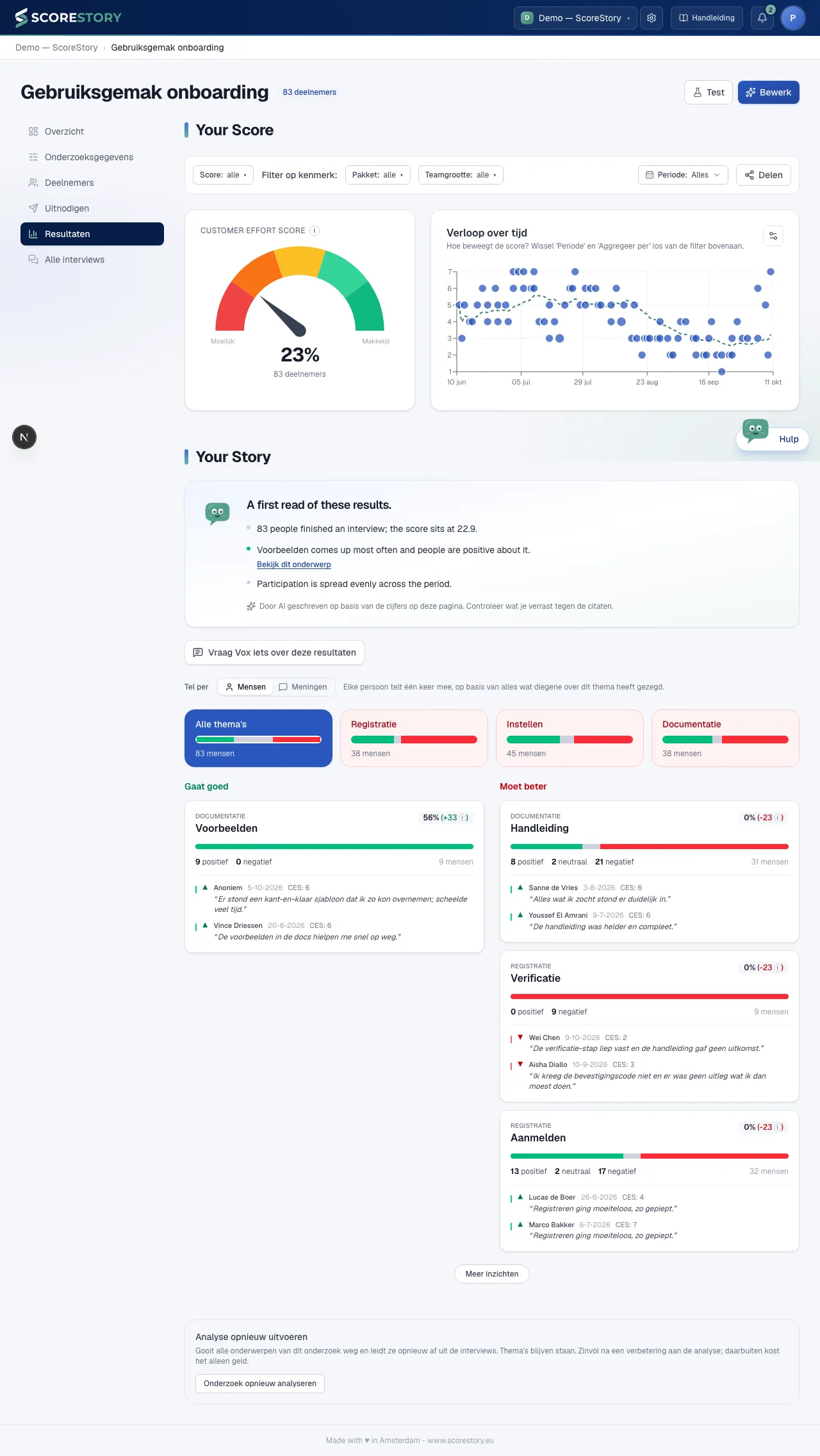
The score (gauge)
At the top is your current score as a gauge, matched to the metric (NPS/eNPS scale or CSAT/CES). The color runs from red (low) to green (high), with the number of participants the score is based on shown below it. For CES the score is the percentage of participants who answered 6 or 7 on the 1–7 scale: the share who found it easy.
Trend over time
The trend chart shows how the score and the number of responses develop over time. You can:
- under the gear (Chart settings), pick the Chart type at the top (bar, line, or scatter with a moving average);
- below it, adjust the aggregation (per day, week, month, quarter, half year or year). A scatter chart has none: every interview is its own dot;
- choose the period (see below).
Choosing a period
The Period button in the filter bar decides which interviews the whole page is about: the score, the trend chart, the conclusion, the themes and the assistant. On the left are fixed choices that apply at once: all time, the last 7, 30 or 90 days, this or last month, and this or last year.
For an exact period, for example 1 January to 31 July, click the first day in the calendar and then the last. You can also type the dates in the From and To (inclusive) fields. Both days count. Click Apply to use the period. A interview counts on the day it was completed, in Dutch time.
The chosen period is part of the page's address, so it stays when you reload the page and you can share the link with a colleague.
Filtering by score
The Score filter in the filter bar shows only the participants who gave a particular score. Pick your own from and to, for example 0 to 6 for everyone who scored low, or 9 to 10 for your fans. For NPS and eNPS there are shortcuts for Detractors (0-6), Passives (7-8) and Promoters (9-10).
Everything on the page follows the filter: the gauge, the trend, the conclusion, the themes and their quotes, and the assistant. That way you can read in one go what people with a low score say, and what people with a high score see differently. The filter combines with the period and the attribute filters; Clear filters resets everything.
The conclusion: what stands out?
At the top of Your Story you will find a short, automatically written conclusion: a few points telling you what stands out in your results. When a point is about a specific topic, you can click straight through to its detail view.
The conclusion follows the filters you set at the top. Pick a period or a group of participants and the story is about that selection, not about everything taken together.
It is kept until new interviews come in, so your colleagues see the same conclusion and the page loads straight away instead of having to think it over each time. Below three completed interviews we leave the conclusion out — there is too little there to say anything meaningful about.
The conclusion is written by AI from the numbers on this page. Treat it as a starting point for your own interpretation rather than a replacement for it: if a point surprises you, check it against the underlying quotes.
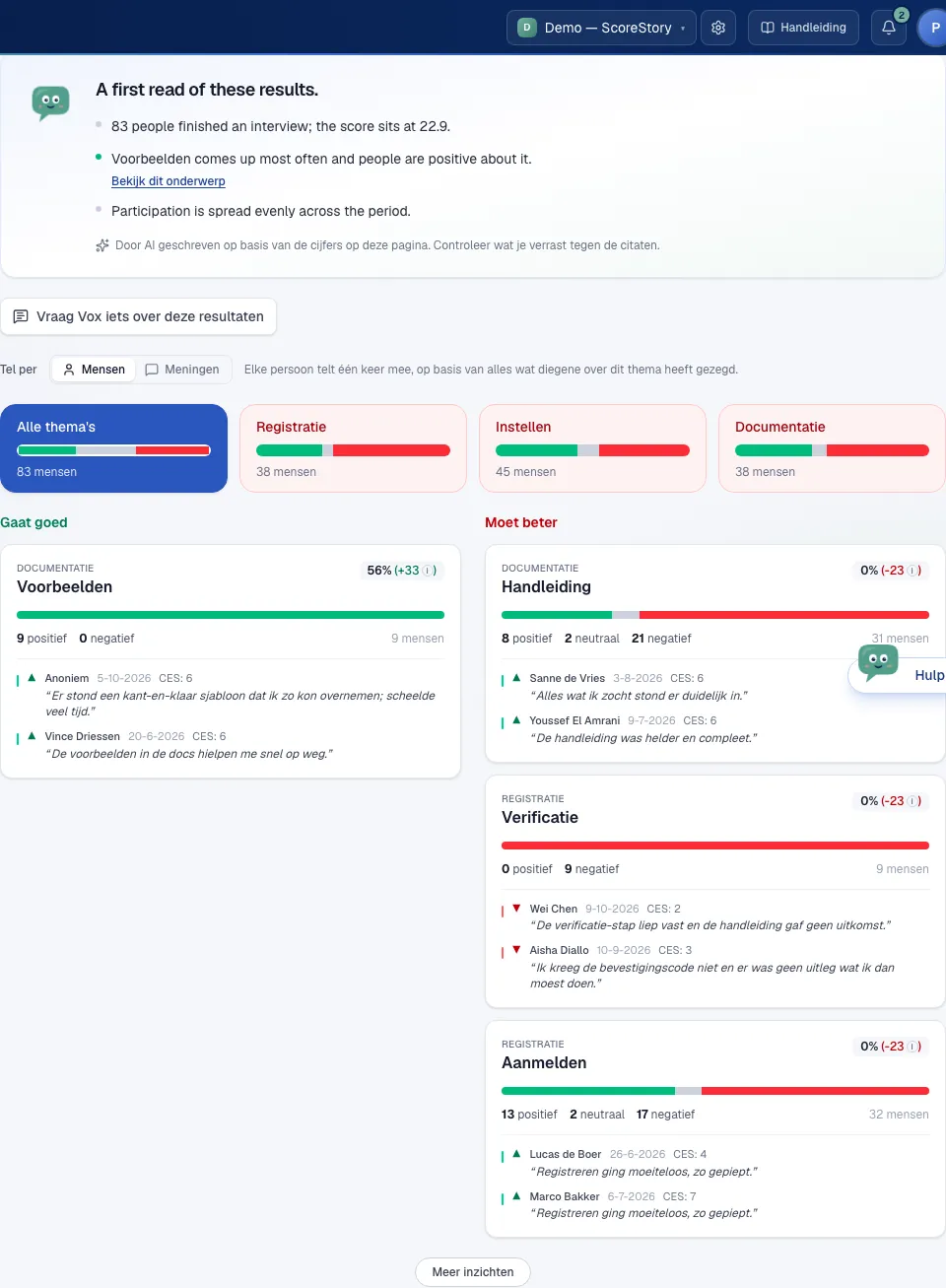
When you filter on a period, it is shown next to the Your Story heading, so further down the page you can still see which period the story covers.
The conclusion counts people, not individual comments. If one person says something about the same topic ten times, that is still one person.
Ask about your results
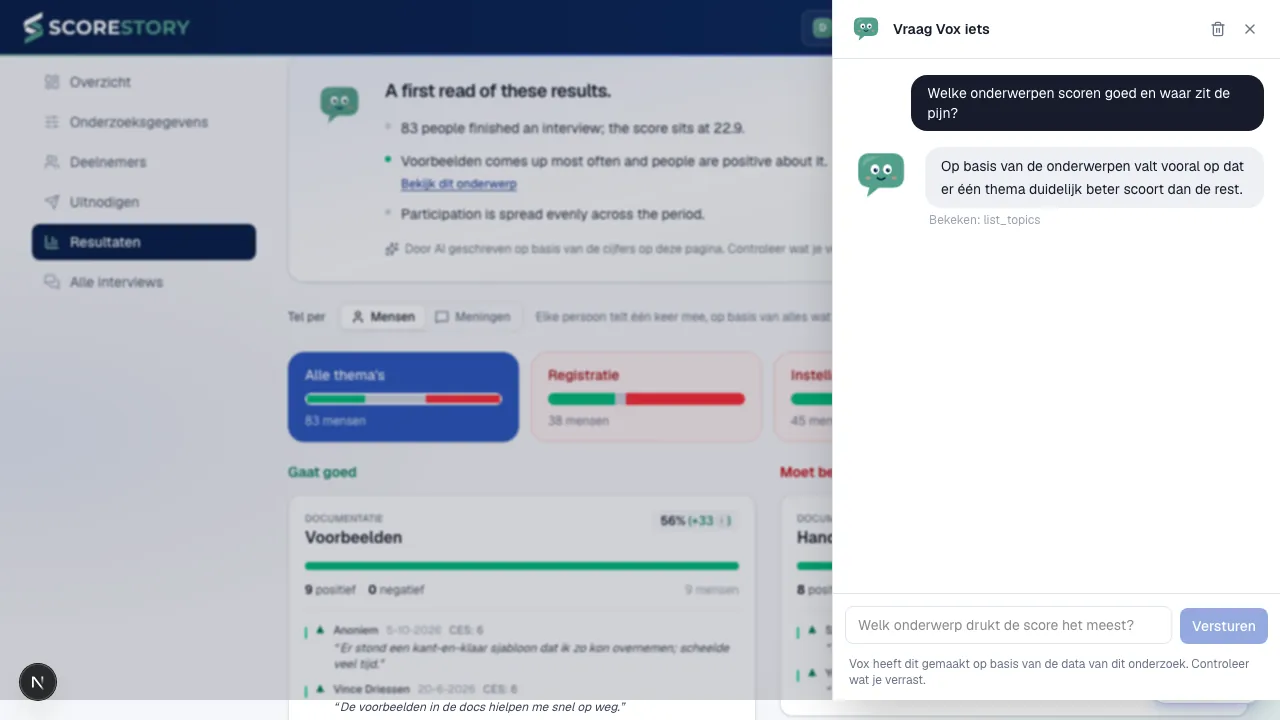
Next to the conclusion there is an Ask about these results button. It opens a conversation on the right where you can ask anything about what you are seeing: which topic drags the score down most, what people actually said, or how this compares with an earlier period.
The assistant genuinely looks things up. It can pull in the topics, fetch individual quotes, read the trend line and — when your question calls for it — read a complete interview. Underneath each answer it shows what it consulted, so you can check it yourself.
It follows the filters you have set. Ask something while filtered to one period or one group of participants and the answer is about that selection.
Your conversation is kept so you can return to it later. It is yours alone: a colleague opening the same results sees their own conversation. Clear it with the bin icon at the top.
A few things the assistant deliberately does not do: it changes nothing about your survey or your data, it can only reach this survey, and participants who asked to be erased stay erased — their answers do not come back by a side door.
In an anonymous survey
In an anonymous survey this page
works the same, with two differences. Quotes and interviews appear under a
label like #a1b2c3 rather than a name — there is no name, it was never
stored. And if you filter on an attribute covering fewer than 5
participants, you get a notice that the selection is too small instead of
results. Otherwise a department of two would still let you read who thought
what. For the same reason, a quote in an anonymous survey shows no attributes.
That applies to the attribute filters. Pick a very short period containing a single interview and that one interview can still be visible — the trend chart has to be able to show a single day.
Topic analysis: "Going well" and "Needs improvement"
Under Your Story the open-ended answers are summarized per topic, in two columns: Going well and Needs improvement. Each card shows the topic, how many participants mentioned it, the positive/neutral/negative split and a few representative quotes. Use the filters at the top (period and participant attributes) to zoom in on a specific group. Click "More insights" for additional topics.
New topics appear shortly after an interview finishes, usually within a minute. In that time ScoreStory checks whether a new topic means the same as an existing one and merges it if so, so you do not end up with "Workload" and "High workload" side by side. A topic you already see does not change its name afterwards.
Counting by people or by opinions
Above the theme blocks is the Count by switch, with two settings:
- People (the default): every person counts once, based on everything they said about a theme or topic. Someone who says something positive and something negative that cancel out counts as neutral.
- Opinions: every comment counts, even when the same person said something about it more than once.
The switch applies to everything below it: the theme blocks, the bar of the selected theme and the cards under Going well and Needs work. Under each theme block, People shows how many people said something about it (for example 83 people), and Opinions shows how many comments that was and from how many people (218 comments from 83 people).
Which column a topic sits in does not change with the switch. We always decide that per person: when more people are positive than negative about a topic, it goes under Going well. One person complaining ten times does not pull a topic into Needs work.
When a theme has comments but no specific topics yet, the columns say so. A topic appears once enough different people have raised it.
Zooming in on a topic
Click a topic card to zoom in on it. You get a detail view with a comparison of the score, an analysis per attribute and a list of representative quotes, which you can filter by sentiment. That way you go from a number to the concrete story behind it.
Next to the date and score, each quote shows the participant's attributes, such as department or location. When someone has more than two, an i button appears: hover over it (or tap it) to see them all.
The top of the detail view has the same attribute filter as the results page. A filter you already set there is still on here. Change it here and the score, the analysis per attribute and the quotes follow, and the filter still applies when you go back. The filter is part of the page address, so you can share a filtered view as a link.
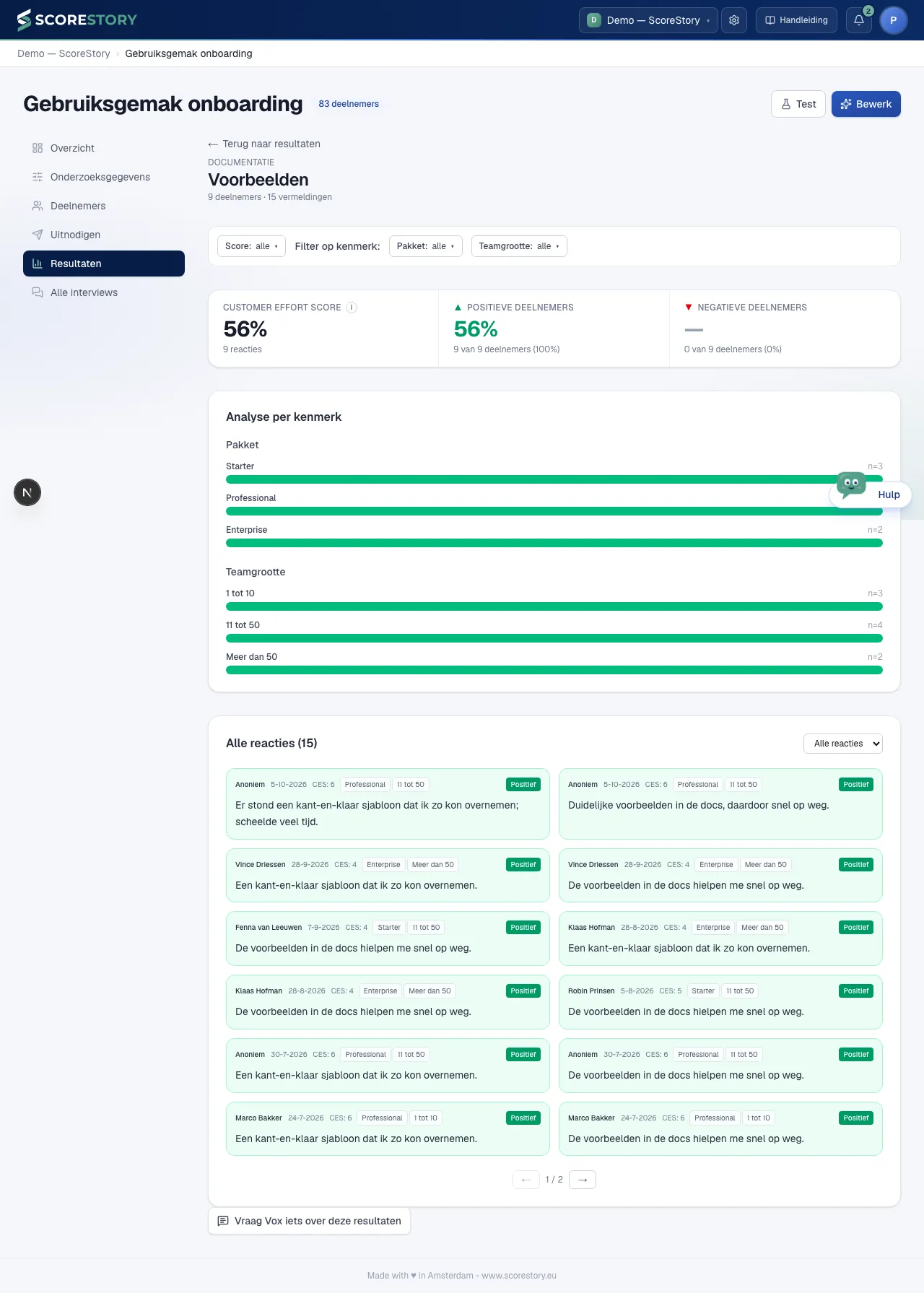
← Back to results at the top takes you back to the results page.
Sharing results
Share in the filter bar gives someone access to the results as you are viewing them now. The filters that are on at that moment (attributes and the score) are locked for that person. With Score 0 to 6, for example, the recipient only sees the results of the detractors. With no filter on, you share the results of all participants; the dialog warns you about that. The period is not locked: the recipient picks it.
Pick a user of your organisation or type an e-mail address and click Share. Someone without an account becomes a user of your organisation with the role Follower and gets one e-mail with a link. Access does not expire.
Want to send the link on yourself as well, in your own mail to a client for example? Copy link under Who can look takes it. Anyone without an account signs up with exactly the e-mail address you shared with.
Under Who can look you see everyone with a view of this survey, with the filters that apply to them. The bin icon revokes access. Recipients of a notification are listed too (see below).
Only an Admin or Editor can share.
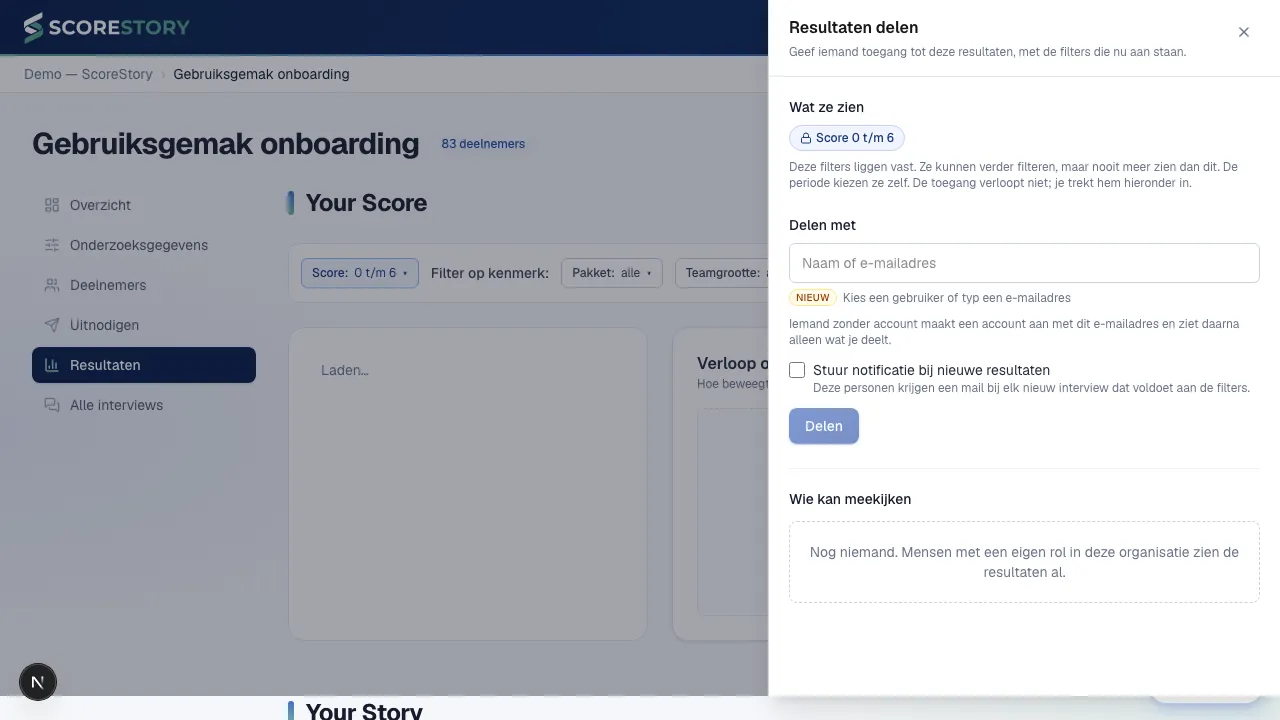
Notify on new results
Tick Notify on new results when you share, and the recipients also get a mail for each new interview inside their view, as soon as it has finished and been analysed. Nobody has to press a button for that. The filters locked by the share are also the conditions of the notification: with Score 0 to 6 and Location: Alkmaar, Amstelveen, the mail only goes out for an interview scoring 0 to 6 from Alkmaar or Amstelveen. With no filter on, the notification applies to every finished interview. An interview without a score never satisfies a score condition.
Every recipient becomes a follower of that interview (see chapter 6) and gets one short e-mail with the survey name, the completion date, the score, the summary and a View interview button. The interview itself is not in the mail. The mails come from ScoreStory itself, in the recipient's language. If someone clicks View interview while not signed in yet, they land on the interview after signing in.
A notification goes out at most once per interview, even if the interview is re-analysed later, and someone who already follows the interview gets no second mail. The followers it creates show up in the interview itself, labelled via notification.
Under Who can look a notification is shown with a bell and Via notification rule. Pause switches the mails off temporarily without removing the notification; access to the results stays. The bin icon deletes the notification.
What someone you share with sees
After signing in the recipient lands on Shared with you: the surveys on the left and, per survey, Results and Interviews: the list of interviews inside their view, plus those they follow. Under Results they see the full results tab: the score, the trend, the conclusion, the themes with quotes and names, and the chat. Clicking a quote opens the interview behind it.
At the top, Your view shows the locked filters. Everything on the page, the chat included, is about the participants inside that view only. The recipient can filter further, but not see more. Someone with several views of the same survey, for example through a notification and through sharing, picks one under View; they are never merged.
Someone with a role of their own in your organisation (Admin, Editor or View results) already sees all results; sharing changes nothing for them.
If you send the same person two overlapping views, for example team A and team A with a score lower than 7, they can put them side by side. Keep that in mind with small groups.
Per participant
Want to see one interview in detail? Open a participant (see chapter 6); there you see the full transcript with the sentiment and linked topics for each answer.
Click the name next to a quote in the results, or a dot in the trend chart, and that participant's interview opens. ← Back to results at the top returns you to the results with the same period, filters and topic you came from.
← Participants · Table of contents · Next: Organization settings →