
The screenshots show ScoreStory in Dutch. The app itself speaks your language: pick it under your account.
Organization settings apply to your entire workspace (all surveys). You reach them via the gear icon next to the organization picker (only visible to admins). On the left is a menu with the sections.
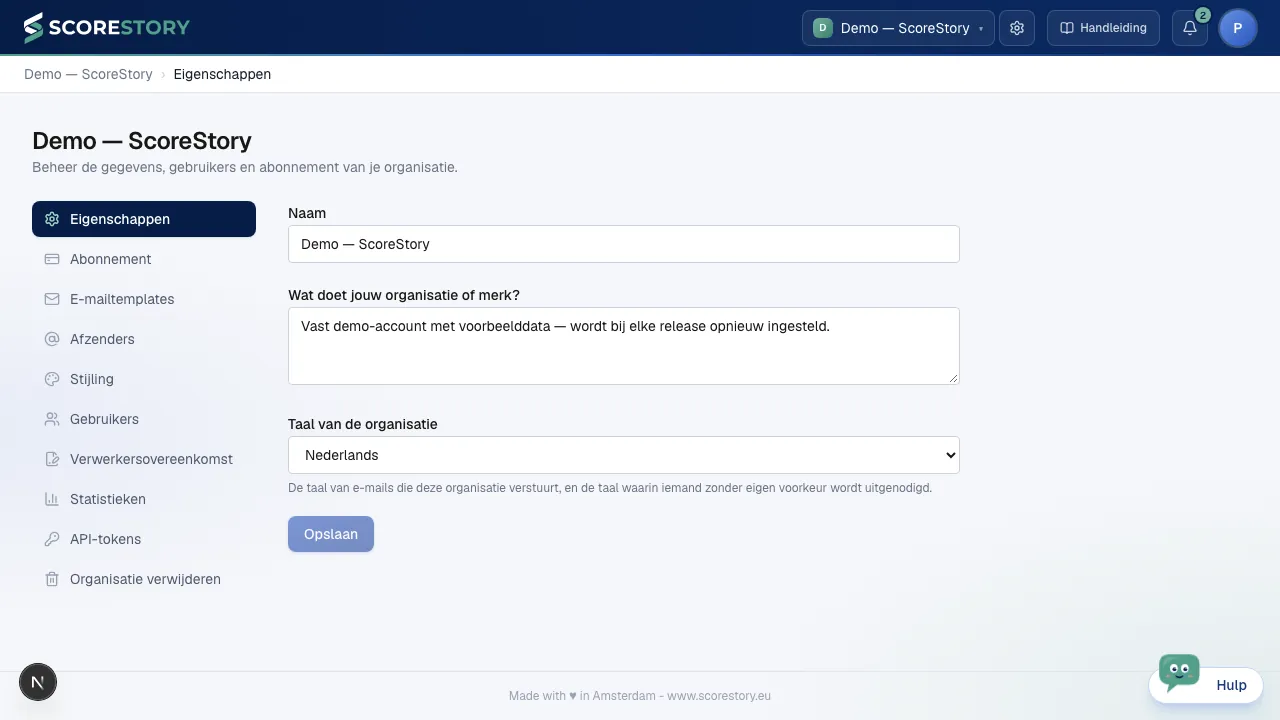
Properties
Your organization's basic details: name and description.
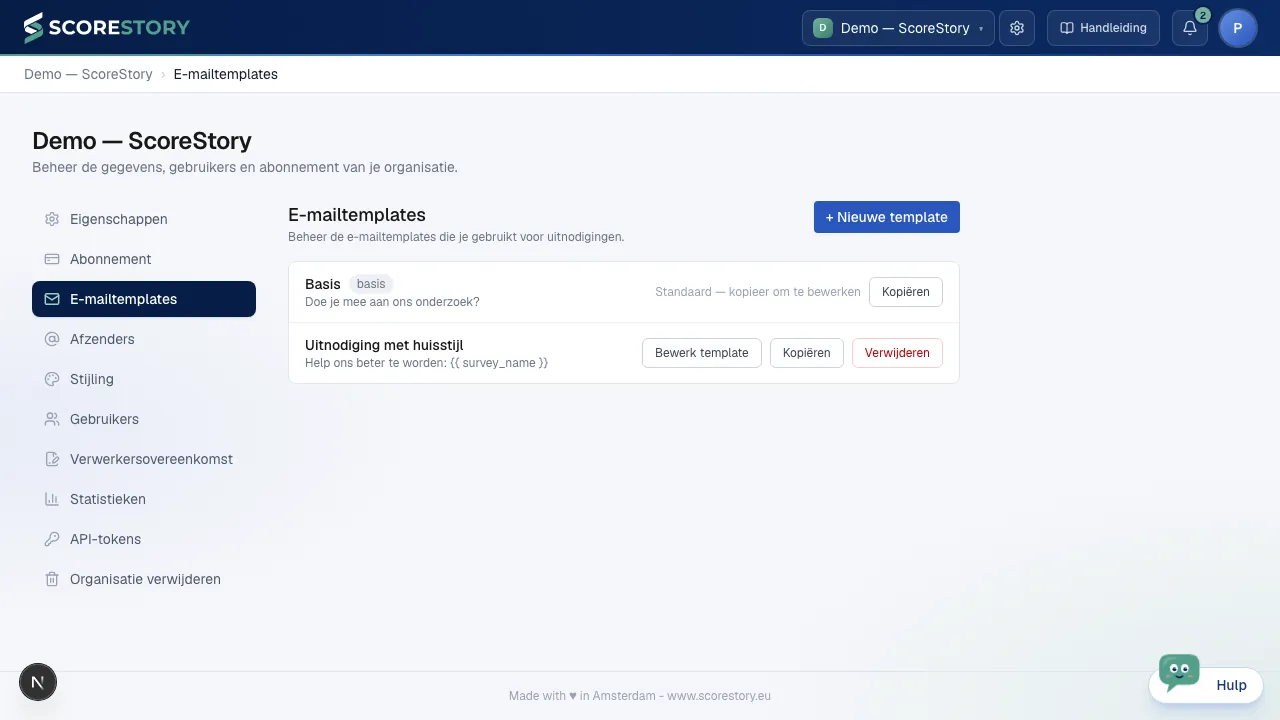
Email templates
Manage the email templates used for email invitations (subject and content). This keeps your invitations consistent in style.
Layout: logo, header image, footer and font
The Layout section is open straight away in the template editor. Use it to give the mail its own look. Everything is optional.
- Logo: by default this is your organisation's logo (from Branding). Use Replace to choose a logo of your own, or No logo to leave it out. The text beside the logo is formatted like the rest of the mail, for example the name of your department in bold.
- Header image: an image across the full width of the mail, 600 × 200 pixels. After choosing it you drag and zoom until the right part sits inside the frame.
- Footer: formatted text at the bottom, on a background colour of your choice. The text colour adjusts itself so it stays readable. The unsubscribe link is added below the footer automatically.
- Font and text colour: only fonts that look the same in every mail program.
The right-hand side of the editor shows a live preview, at desktop and mobile size. Copying a template copies its layout too.
The score question in the mail itself
In the editor, pick Score question (with buttons) under Insert variable. At that spot the mail shows the survey's score question with a button per score. Clicking a score takes the recipient straight into the interview with that score already filled in, skipping the score step.
The question comes from the survey and cannot be edited in the template. That way everyone answers the same question, whether it is asked in the mail or in the interview. The editor's preview shows an eNPS question; when sending, the mail uses the survey's own question and scale.
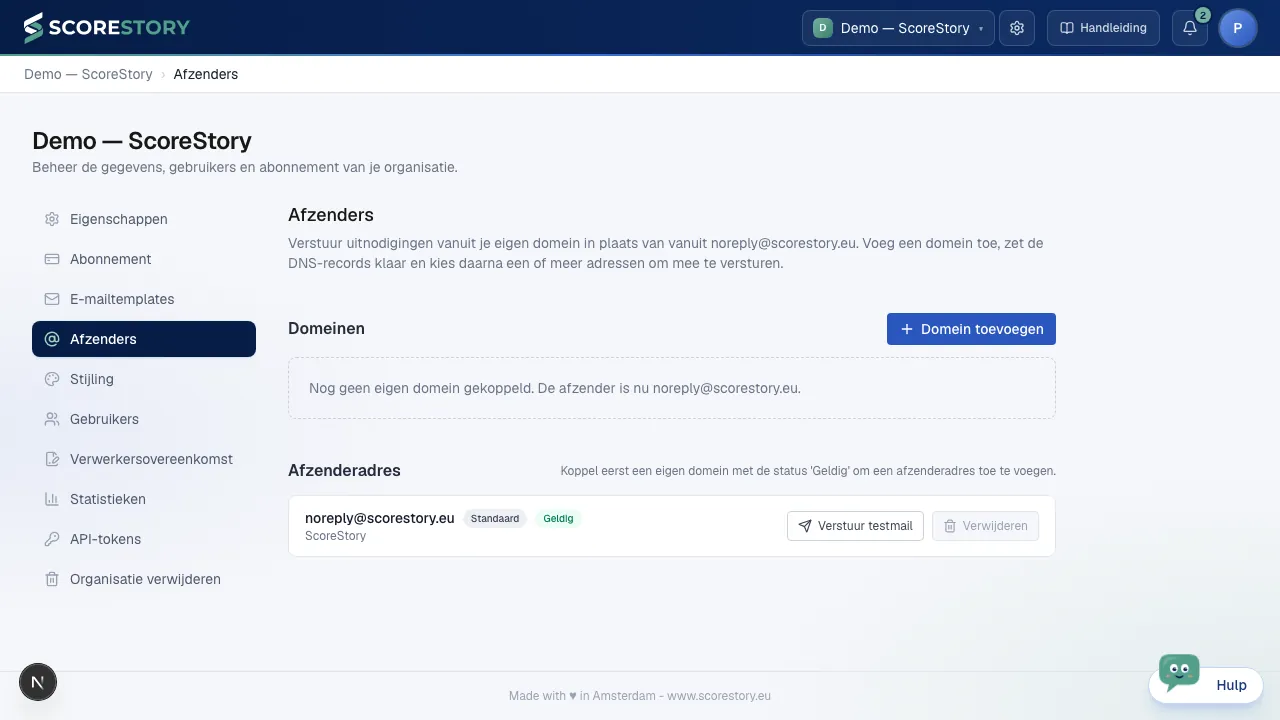
Senders (sending domains)
Under Senders you configure which email address/domain you send invitations from. For your own domain, this shows the required DNS records (TXT/CNAME/MX) to verify the sender, so mail is delivered properly.
TXT values are shown between double quotes, because some hosting providers expect them literally. If your provider adds the quotes for you, leave them out — both forms are accepted when we check the records.
If you send from a subdomain, such as feedback.klant.nl, every record
belongs under that subdomain and not under klant.nl. The panel then says so
explicitly, and shows each record's full name plus the name to enter in the
DNS settings of klant.nl (for example _dmarc.feedback). The export carries
that column too.
Not publishing the records yourself? Export above the table hands over the whole set in one go: Copy all records pastes them as a table into an email or spreadsheet, Download as .csv produces a file a hosting party can import, and Download as .txt gives a readable overview with a short explanation per record.
A From-address can only live on one of your own domains with status
'Valid'. The Add address button therefore only appears once such a domain
exists; the ScoreStory platform domain (noreply@scorestory.eu) is not in the
dropdown. You fill in the address in a single field: the part before the @ sign
on the left, the domain on the right.
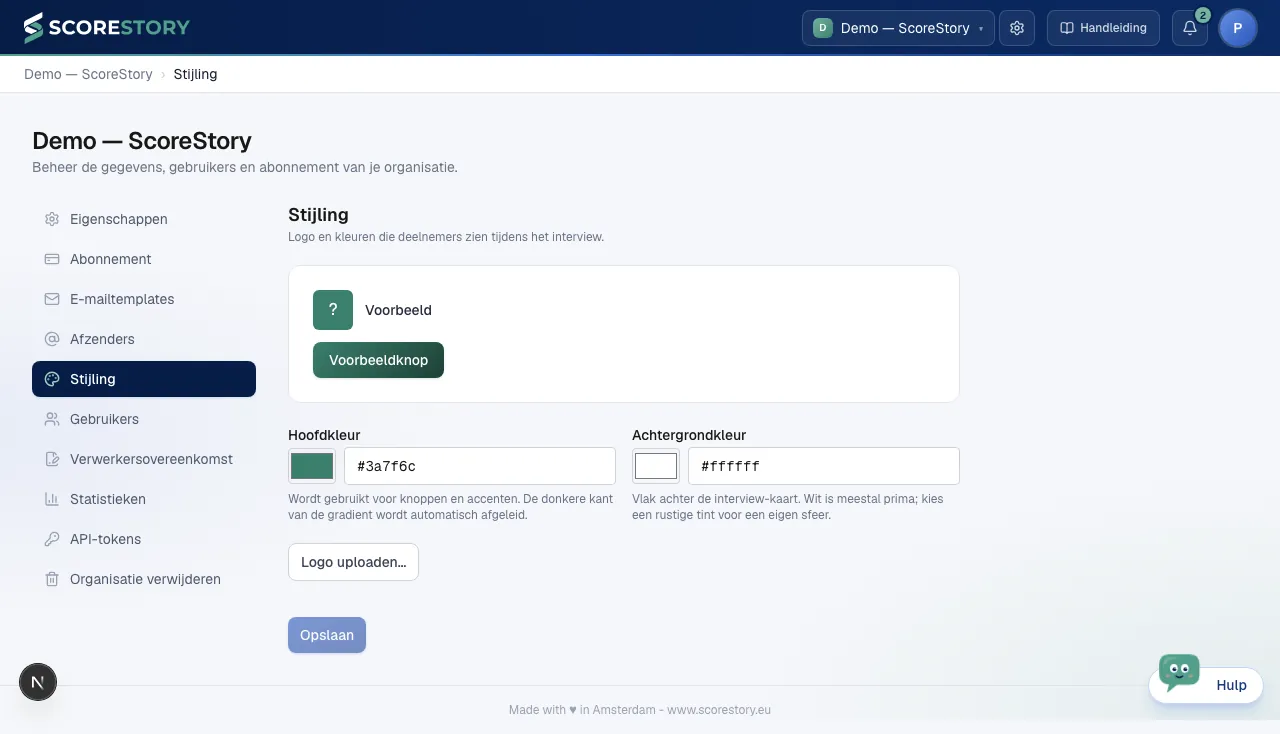
Styling (branding)
Under Styling you configure your brand: color/gradient, logo and avatar. Participants see this branding on the invitation and interview pages.
Users
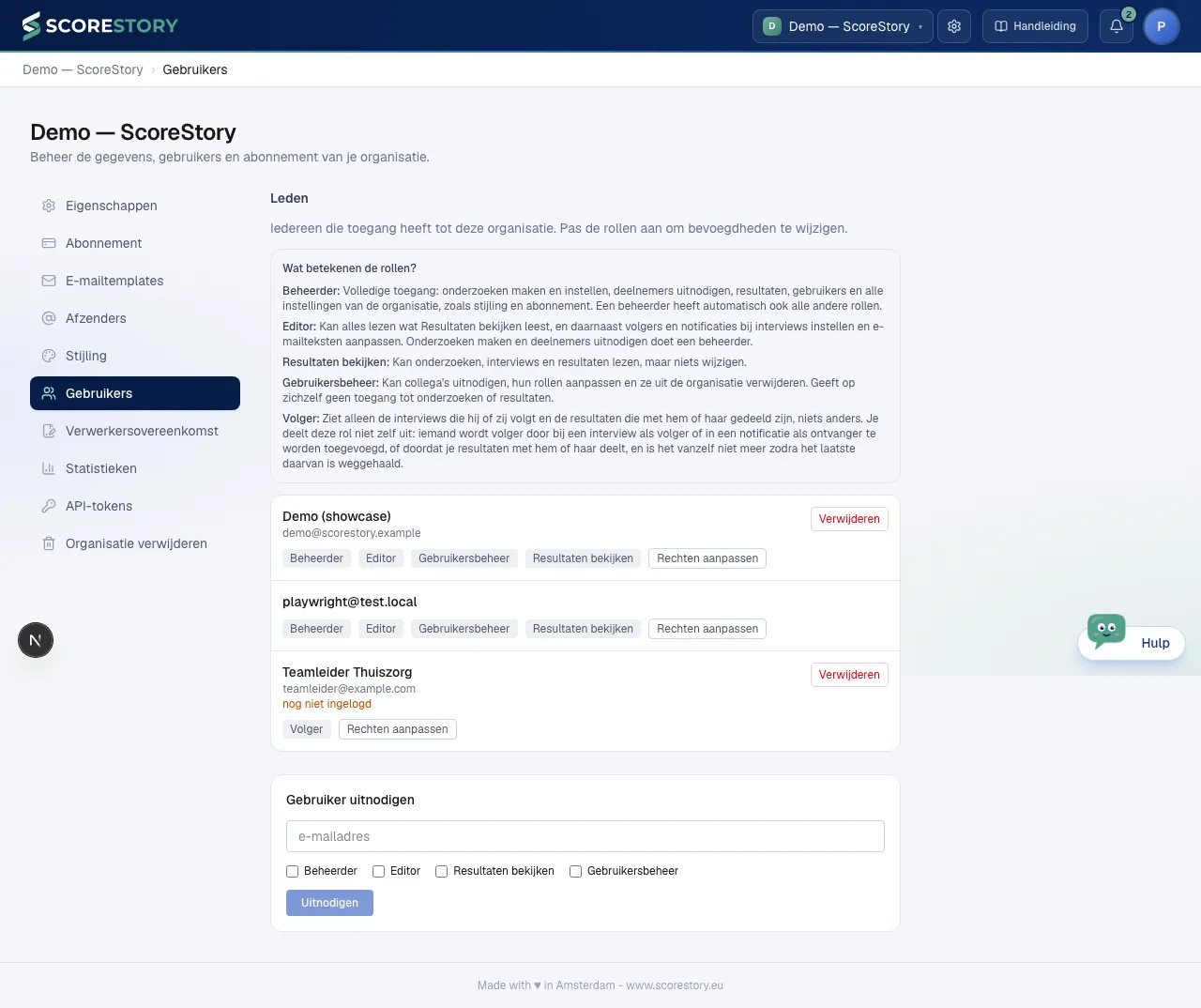
Under Users you manage who has access to the organization and with which role:
- Admin — full access: creating and setting up surveys, inviting participants, results, users and every setting;
- Editor — reads everything View results reads, and can also set up followers and notifications on interviews and edit email texts;
- View results — can read surveys, interviews and results, but cannot change anything;
- User management — can invite colleagues, change their roles and remove them, without by itself getting access to surveys or results;
- Follower — sees only the interviews they follow and the results shared with them. You do not hand this role out through the invitation: someone gets it by being added as a follower of an interview (see chapter 6), by being a recipient of a notification (see chapter 7) or when someone shares results with them (see chapter 7), and loses it by itself once the last of those is removed. Someone added that way by e-mail address who has never signed in is marked not signed in yet.
You invite a colleague with a team member invitation; they accept it
via an /invite/... link (not to be confused with a participant invitation,
see chapter 5).
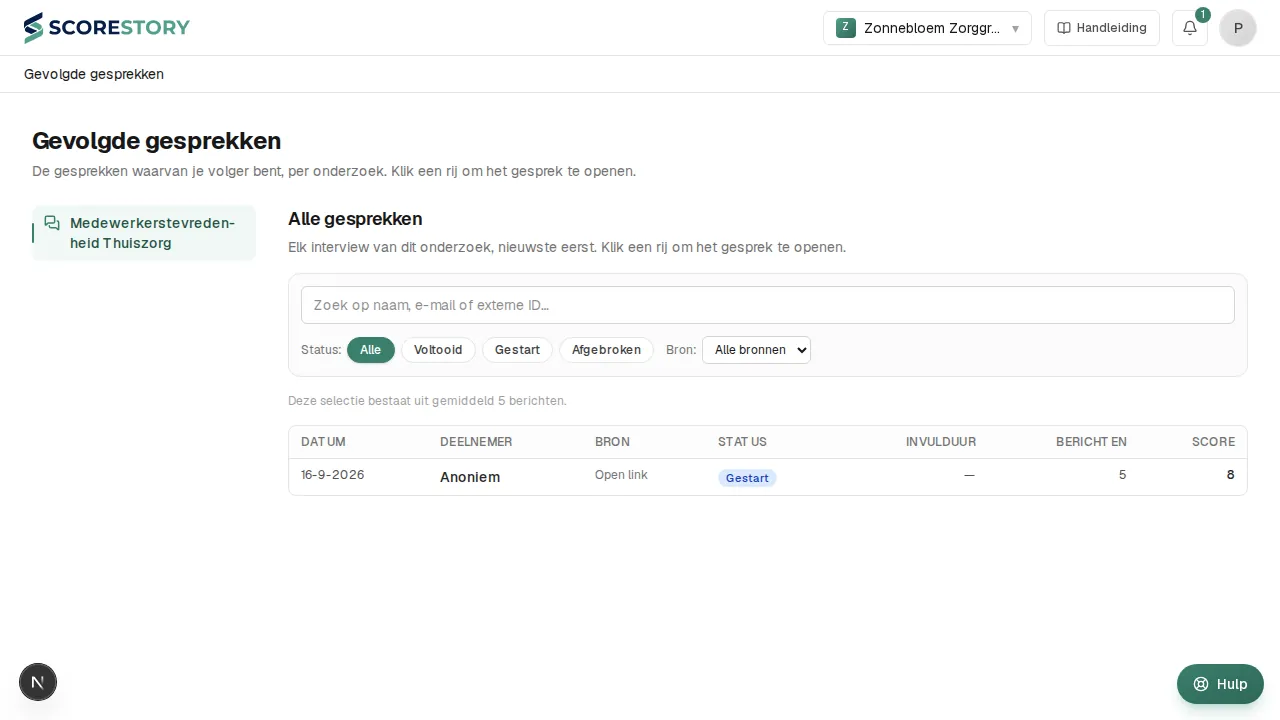
Someone who is only a follower in your organization sees the same top bar as everyone — including the organization switcher, because the same person may well have full rights in another organization — but below it a view of their own, Shared with you: the surveys they follow an interview in or may view results of on the left, and on the right the interviews table with only those interviews and, if results were shared with them, the results inside their view. Remove such a person from the organization and their followed interviews and their access to results go too.
Statistics
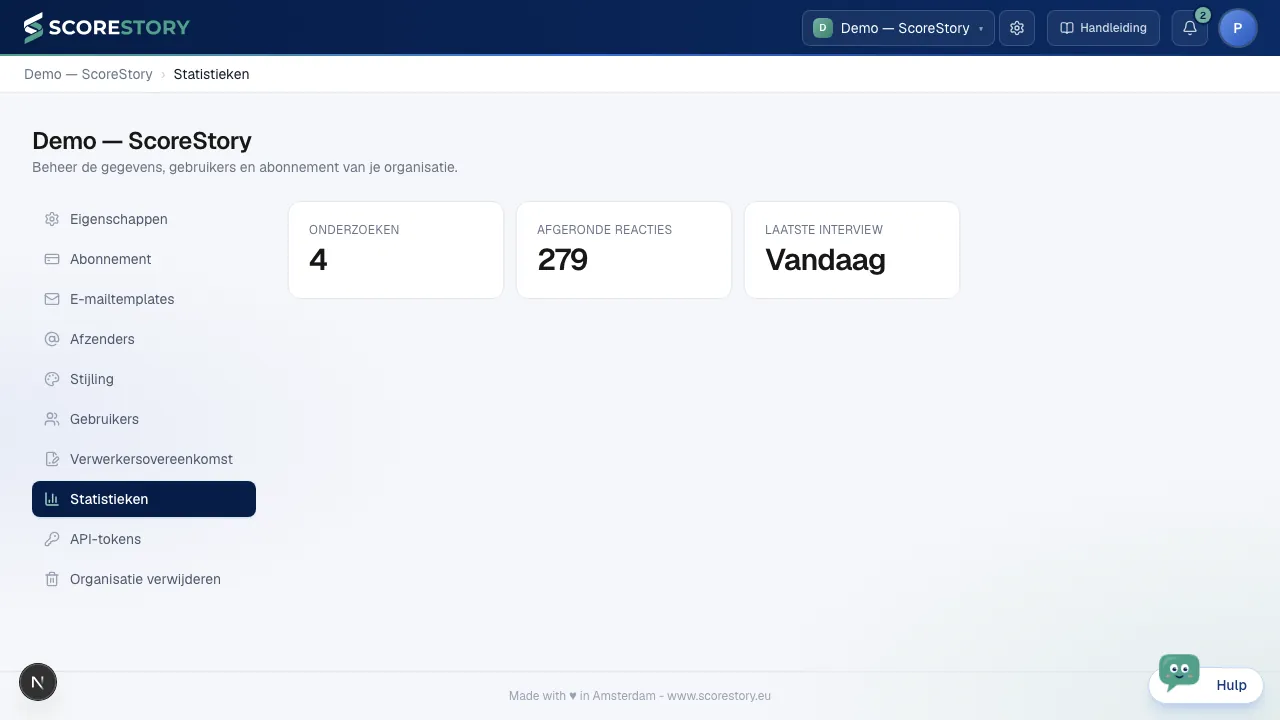
Under Statistics you see organization-wide numbers, such as the number of surveys and the total number of completed responses.
API tokens
Under API tokens you give an integration or AI agent access to this workspace without sharing a user account.
For each token you choose:
- Permissions. Reading and writing are separate, and per area: surveys, invitations, participants, results, mailings. Grant only what the integration actually needs.
- Expiry. Optional, but worth setting: a token that expires is safer than one that works forever.
Two permissions are destructive and are therefore off by default. Deleting participants erases people and their answers for good, and sending mailings sends real e-mail from your own sending address. Grant them only to something you would trust to do that unattended.
You see the token itself once, right after creating it — after that we only keep a hashed version. If one leaks, revoke it: that keeps the history visible, which deleting does not. Everything changed with a token is written to the audit log, marked as an API action.
Connected apps: an AI assistant without a token
For an AI assistant such as Claude or ChatGPT you do not copy a token at all. Add ScoreStory to the assistant as a connector or MCP server — the address is at the top of the API tokens page, under Connected apps — and the assistant sends you to ScoreStory. Sign in as usual, pick the workspace, tick what the assistant may do and click Allow. That is all; from then on you can ask the assistant to create a survey, invite people or summarise the results.
Do read the yellow warning before Allow: it names the address the access goes to. Anyone can register an app under any name, so the name and logo say nothing; the address does. Click Allow only if you started the connection yourself from that app. If someone else sent you the link, deny. Only the read permissions are on by default; write permissions are ticked on purpose.
Such a connection acts on your behalf: it has the same rights you have in that workspace, and if you lose that access the assistant stops too. Under Connected apps you see which apps are connected, by whom and when last used, and you end one with Disconnect. Everything the assistant does is written to the audit log, together with the app's name. Only administrators can connect an app.
Subscription
The Subscription section is reserved for subscription management and will be filled in in a future version.
Data processing agreement
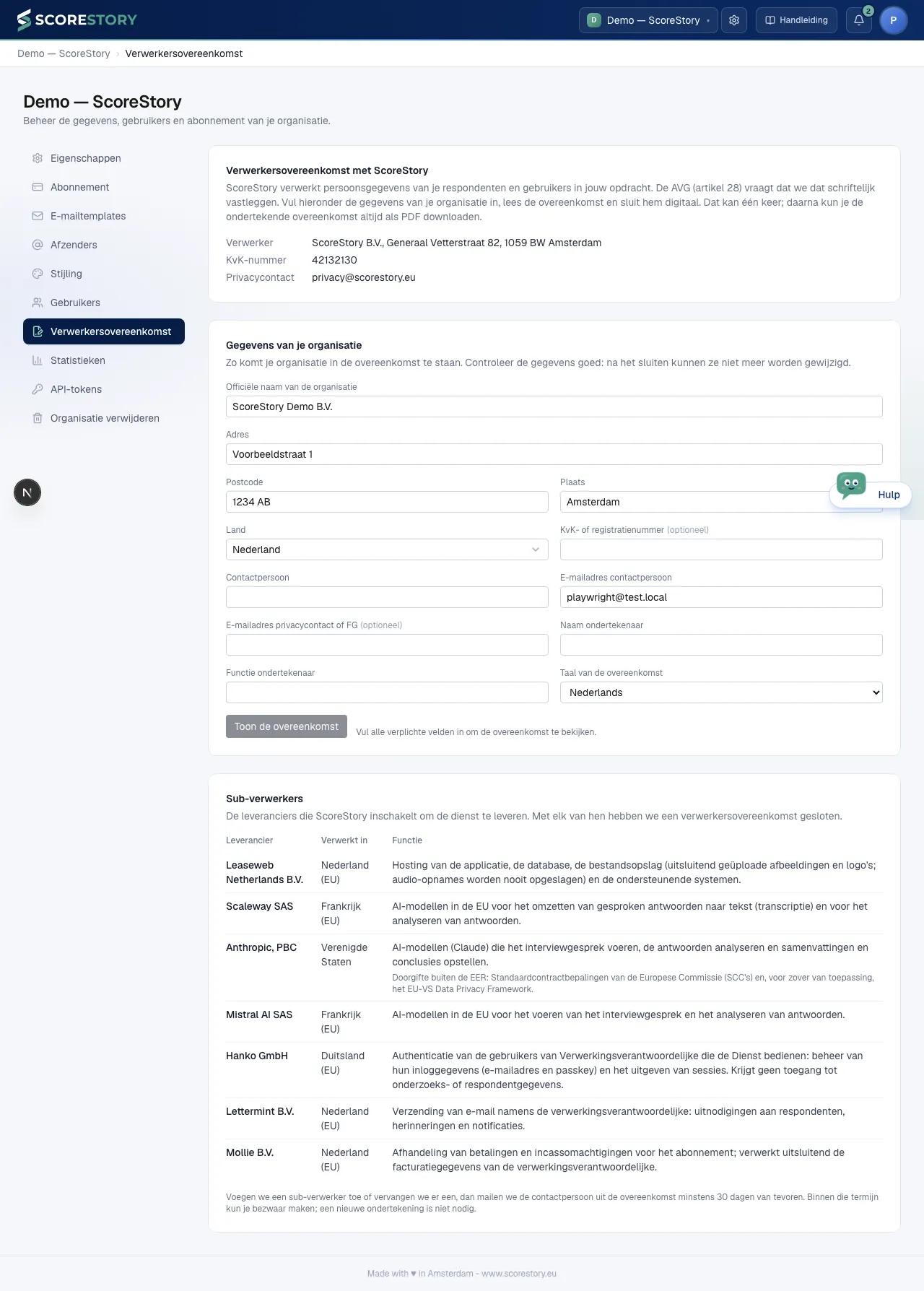
ScoreStory processes the data of your respondents and users on your behalf. The GDPR (Article 28) requires a data processing agreement for that. You conclude it yourself, in a few minutes, under Organisation → Data processing agreement. Only administrators see this tab.
How it works:
- Fill in your organisation's details. The legal name, the address, the company registration number, the contact person and who signs. The company name and your own name are prefilled; if you have entered invoicing details, the address comes from there. Also pick the language of the agreement: Dutch or English (in the event of a difference of interpretation the Dutch text prevails).
- Show the agreement. You see the full text as it will be concluded, with your details in it. If you change anything in the form afterwards, the page asks you to view the text again.
- Confirm and conclude. Tick that you are authorised to sign on behalf of your organisation and click Conclude agreement.
After that the agreement is fixed. You immediately receive a confirmation by e-mail with the PDF attached, and on the same page you can download it again at any time with Download PDF. Concluding is possible once per organisation; the details in it cannot be changed afterwards.
At the bottom of the page are the sub-processors: the suppliers ScoreStory engages for hosting, AI models, e-mail and payments, with where the data is processed and what for. ScoreStory has a data processing agreement with each of them. If a sub-processor is added or replaced, we e-mail the contact person from your agreement at least 30 days in advance. You can object within that period; no new signature is needed.
Delete organization
If you want to stop using ScoreStory, an admin can delete the organization themselves through Delete organisation, at the bottom of the settings list. Other roles do not see this section.
How it works:
- Read what goes. All surveys, interviews, participants, invitations, templates, styles, API tokens and members are deleted. Invoices and payments are kept, because the law requires it.
- Mind your subscription. On a paid subscription you see until when the running period lasts. That remaining time is forfeited and not refunded. Participants above your bundle in this period are billed right away on a final invoice.
- Type the organization's name and click Delete organisation. The button only works once the name matches exactly.
The organization is blocked right away: nobody can open it any more, and it disappears from every member's organization switcher. You see the date on which we delete it for good, after 30 days. Was it a mistake? Contact our support before that date and we will undo it. After that date there is nothing left to restore. The other members do not get an e-mail about it.
← Results & analysis · Table of contents · Next: Subscription →