
The screenshots show ScoreStory in Dutch. The app itself speaks your language: pick it under your account.
Logging in
ScoreStory uses passwordless login (passkeys/email) via Hanko. Go to the
login page, enter your email address and follow the steps on your device.
After logging in you land on your survey overview (/surveys); if you don't
have an organization yet, you're automatically sent to the setup screen.
Creating an organization
An organization is your workspace: all surveys, participants and settings belong to one organization. On your first visit you create one in three short steps.
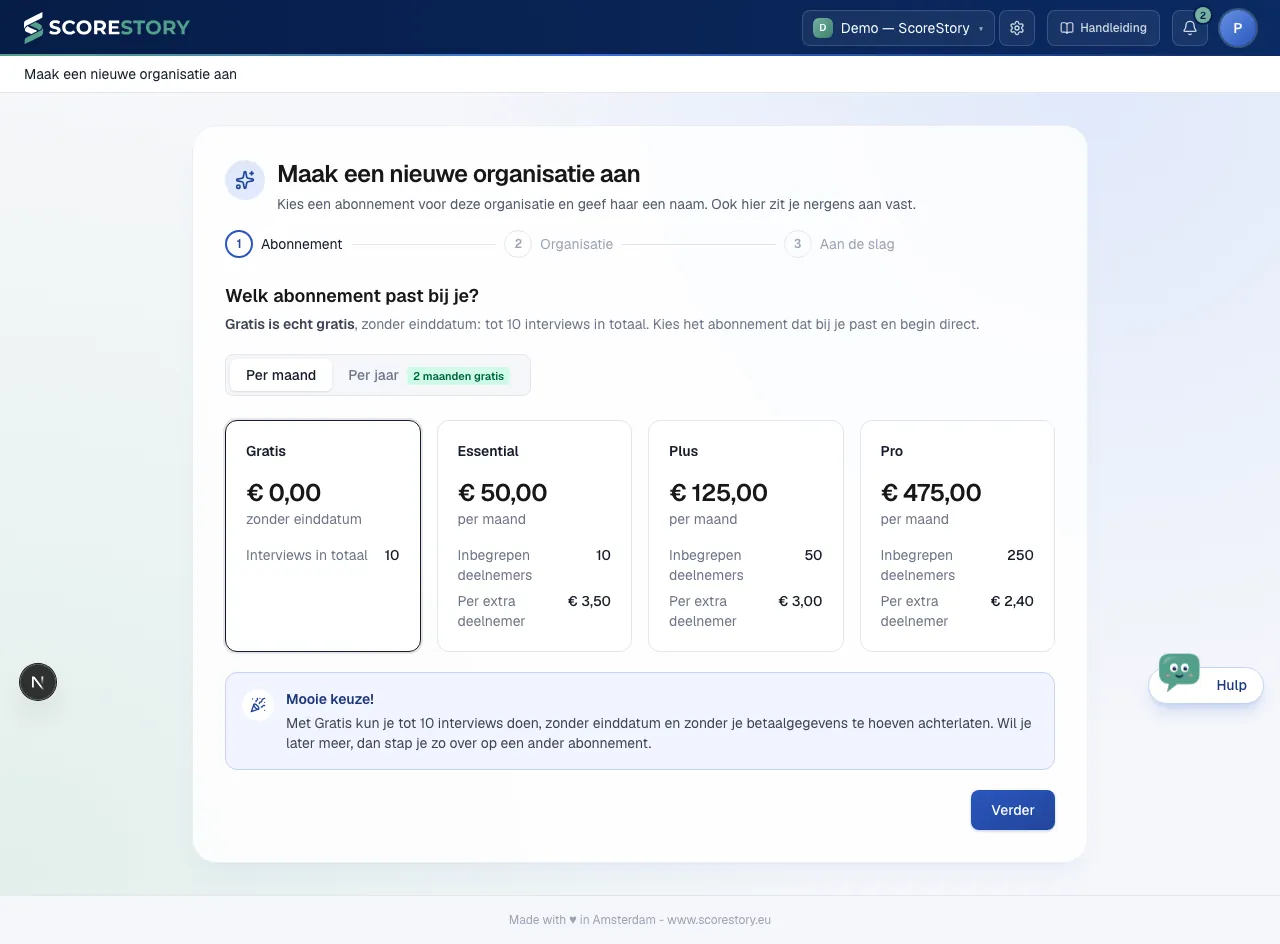
Step 1: plan. You choose which plan the organization is on: Free (up to ten interviews, no end date) or one of the plans Essential, Plus or Pro. Each card shows the price with the period underneath. As soon as you pick one, you read below the cards what that choice means: with Free, how many interviews you can run; with a paid plan, how many participants per month are included (10, 50 or 250) and that if you go over once in a while you only pay for the extra participants. Choose a paid plan and you complete your details and payment method after creating the organization; see chapter 9. Nothing ties you down: you can switch or cancel at any time.
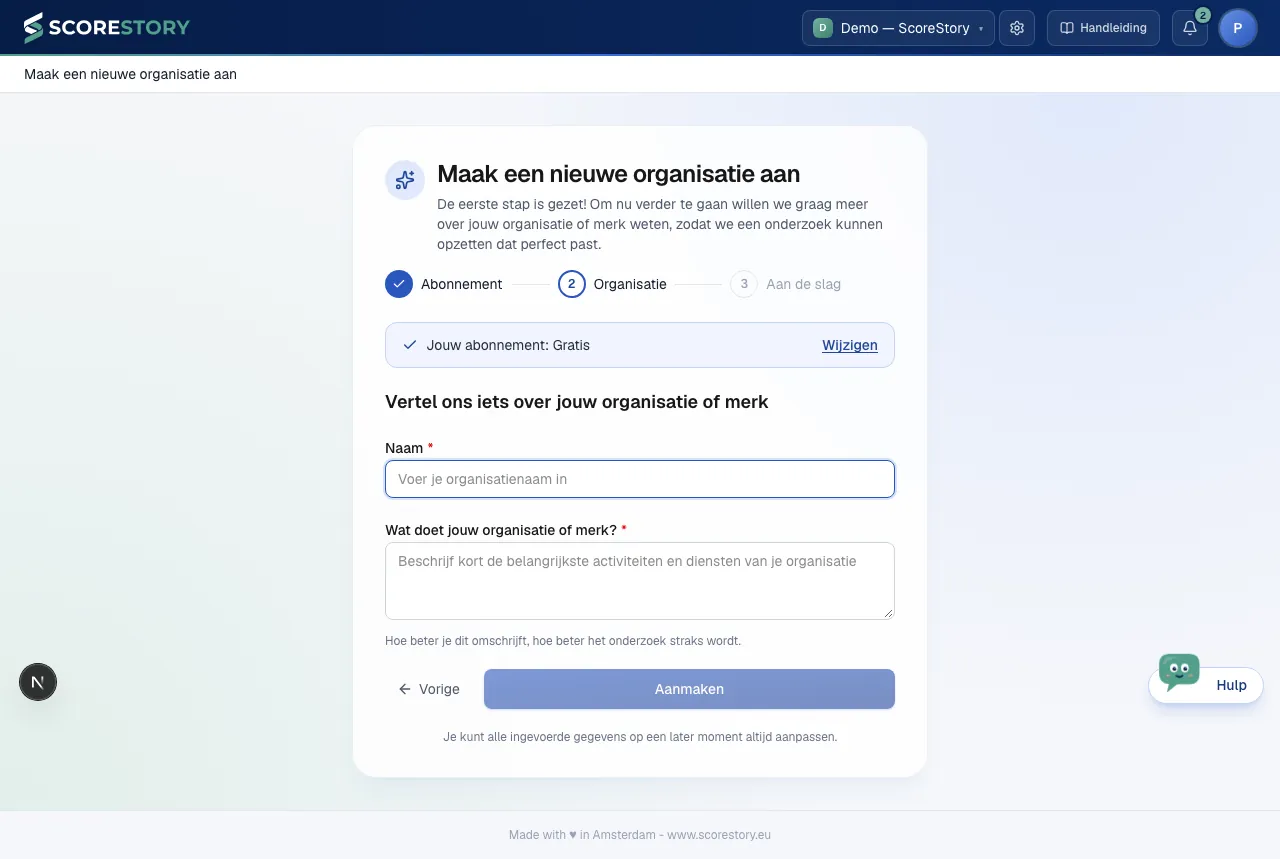
Step 2: organization. At the top, Your plan shows your choice from step 1, with a link to change it. Below it you enter the name of your organization or brand and describe what your organization or brand does. Both fields are required. The better your description, the better the survey ScoreStory sets up for you. You can always change everything you enter here later.
Step 3: almost done. Your organization is ready and you choose what to do first: look at the demo account (an account full of example surveys and results; one click takes you back to your own account) or create your own survey right away (see chapter 2). If you chose a paid plan, you first fill in your invoice details and payment method. Both remain available later: the demo is always in the organization picker at the top.
Switching between organizations
If you belong to multiple organizations, switch between them at the top via the organization picker next to the logo. At the bottom of that menu is "+ Add organization" to start a new workspace. Your choice is remembered, so you return to the same organization next time.
The survey overview
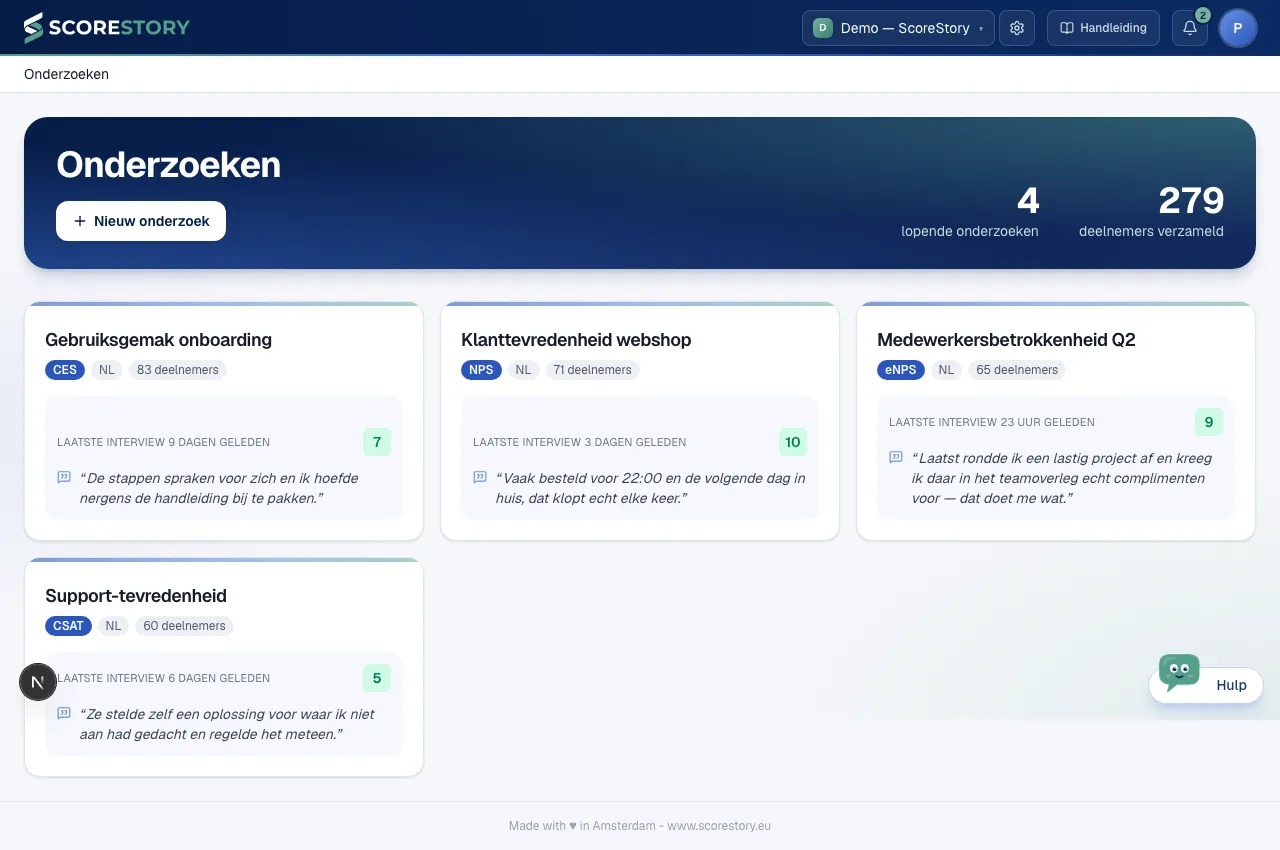
The overview shows your surveys as cards, each with its metric, current score and number of participants. In the top right, "New survey" creates a new survey.
Your account
Use the profile menu in the top right to manage your account (email address, passkeys) and switch language (Dutch/English). This is also where you log out.