
The screenshots show ScoreStory in Dutch. The app itself speaks your language: pick it under your account.
On the Invite tab you choose how you reach participants: with a link, with a popup on your own website or with an email. Adding participants happens on the Participants tab (see Adding participants below). You can use the sources side by side. In the results and the participant list you can later filter by source.
Links
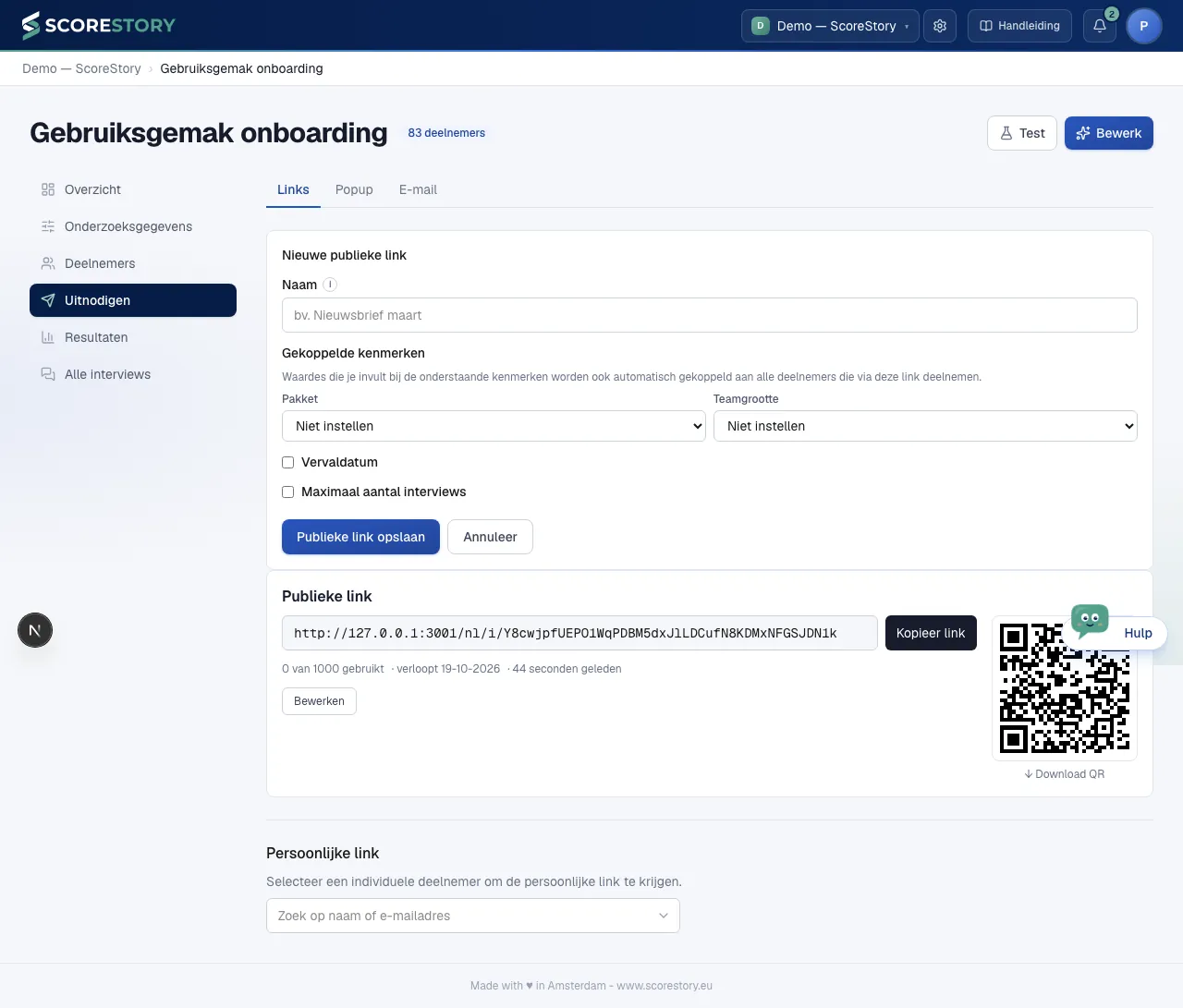
Links shows the public link at the top, and below it the personal link of a single participant.
Public link + QR
A public link is a single reusable link anyone can use. You automatically get a QR code with it, handy for a screen, flyer or newsletter. When you create one you fill in:
- Name: linked to every participant who used this link. You see it again as the source in the participant list.
- Linked attributes: values you fill in here are given automatically to every participant who takes part through this link. This part only shows when your survey has attributes.
- Expiry date: tick it and pick a date and a time at which the link closes.
- Maximum number of interviews: tick it and pick how many interviews the link yields at most.
Then click Save public link.
Personal link
Below the public links is Personal link. Type part of a participant's name or email address and pick them from the list. Their personal link appears on the line below; Copy link copies it. A personal link is for exactly one person. If that participant's interview has already started or finished, there is no open link any more; start a new round from Participants instead.
Popup (website embed)
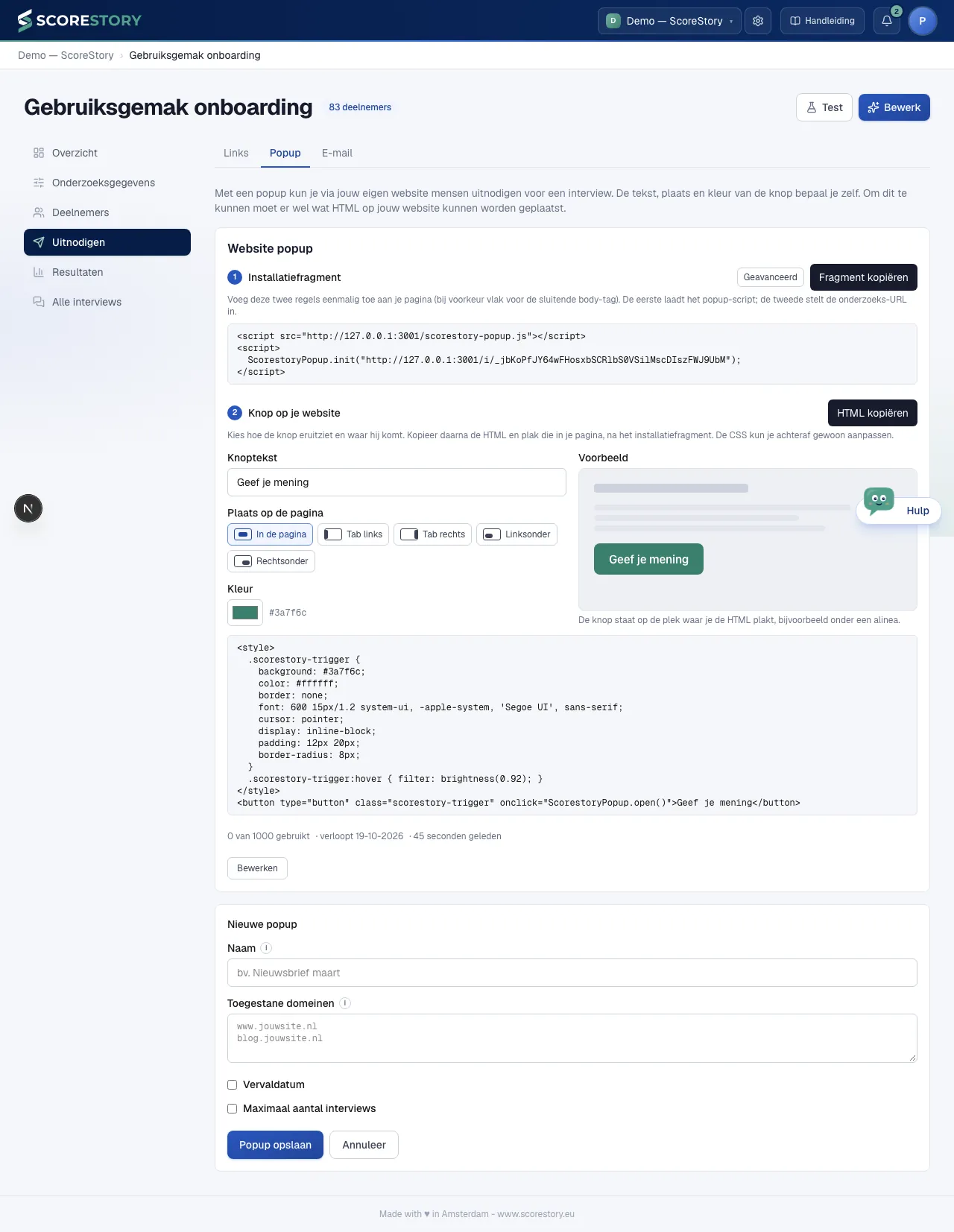
With a popup you can invite people to an interview through your own website. Visitors see the invitation without leaving your site. You do need to be able to place some HTML on your website. You can pass attributes per visitor.
When you create one you give the popup a Name (linked to every participant who comes in through the popup), optionally the Allowed domains, an Expiry date and a Maximum number of interviews. Then click Save popup.
You get two snippets. The install snippet is pasted into your page once. Next to it you compose the button that opens the popup: pick the text, the placement (in the page, as a tab on the left or right edge, or in the bottom-left or bottom-right corner) and the colour. The preview shows what the button will look like; Copy HTML takes the button, styling included, to your website.
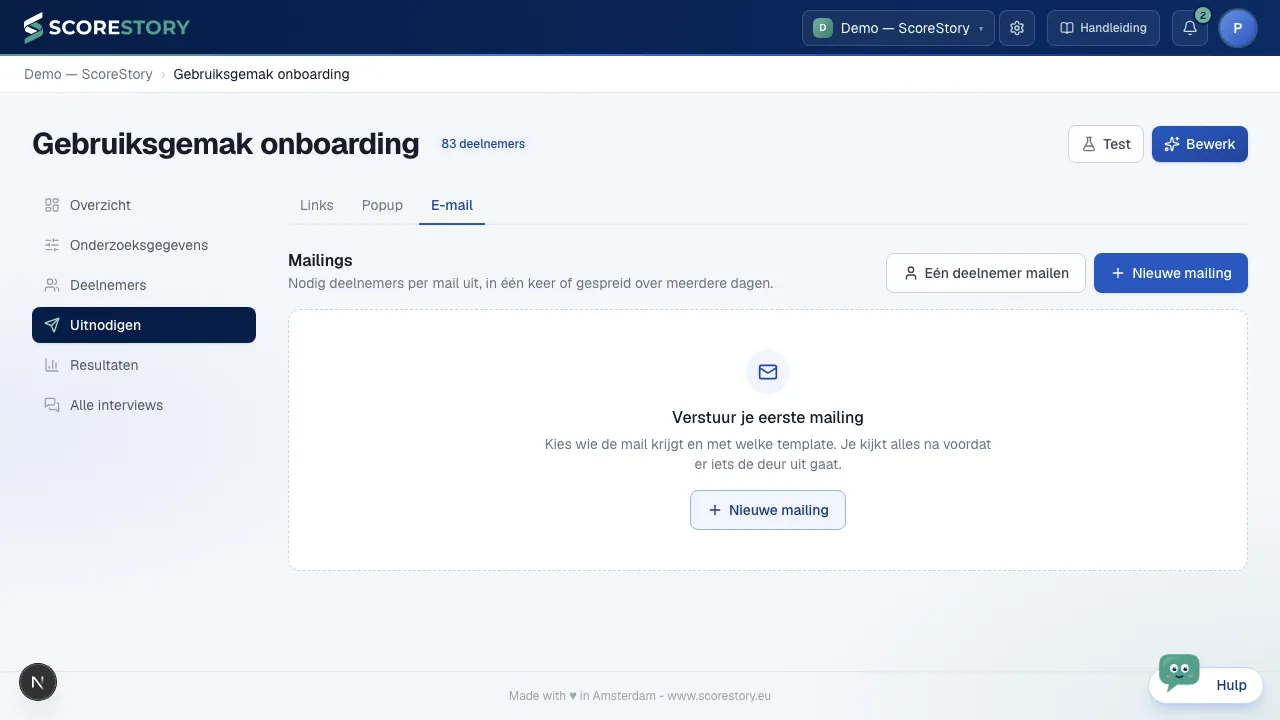
Via Email you send invitations as a mailing from ScoreStory, using an email template and a sender from your organization settings (see chapter 8).
The tab opens with your mailings: for each mailing the date, the template, the status and how far sending has got. A reminder sits indented under the mailing it belongs to. Click a mailing to open it. If you have no mailings yet, you see a button to make your first.
A new mailing
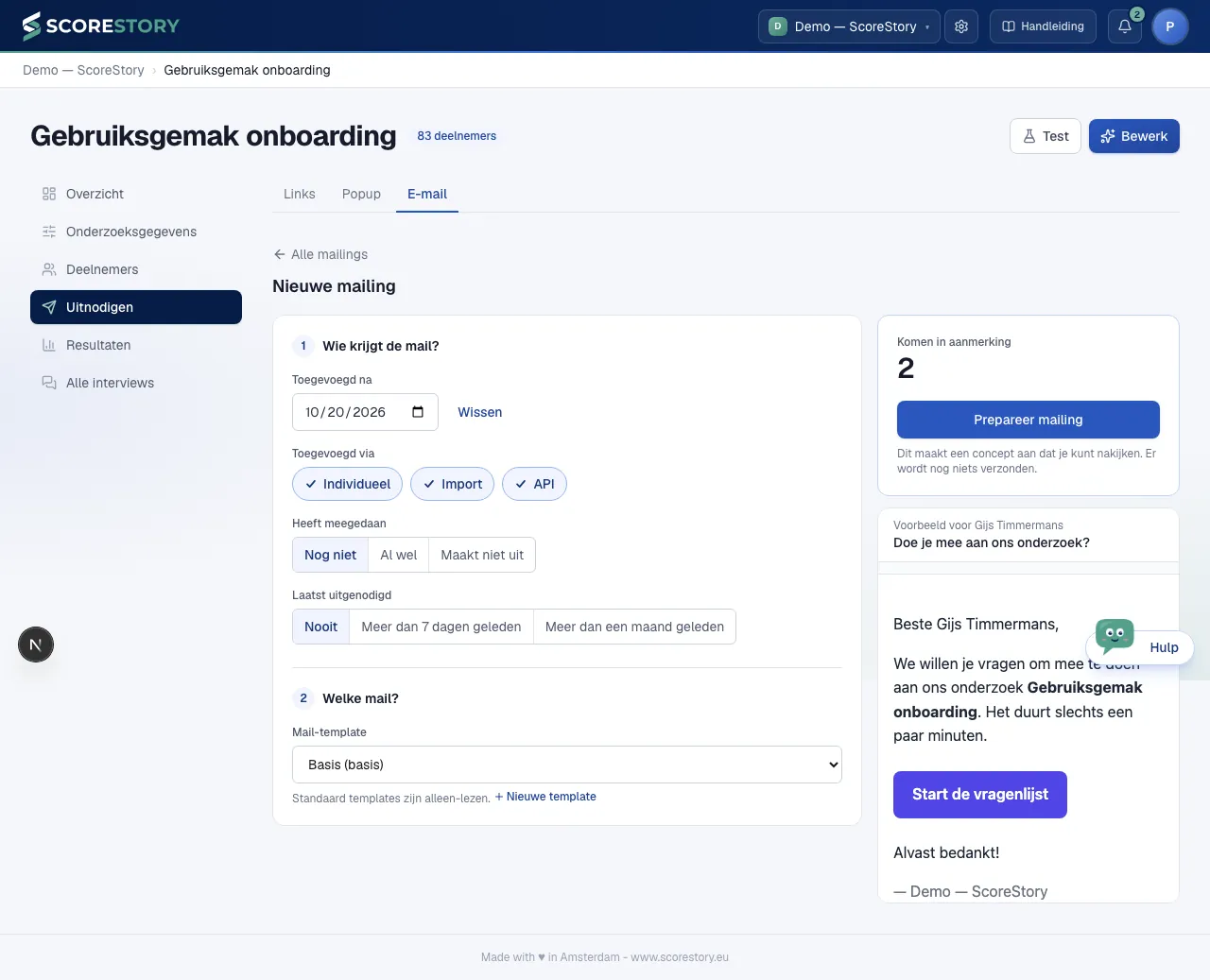
Click New mailing. You choose in two steps:
- Who gets the email? Set after which date participants were added (empty means any date), how they were added (individually, by import or through the API), whether they have taken part already and when they were last invited. If you choose only Import, you can also limit the mailing to one or more imports.
- Which email? Choose the email template. For a template of your own, click Edit template; + New template makes a new one. The Basis template itself cannot be changed. If your organization has more than one sender, you also choose the sender here.
On the right you see straight away how many people are eligible, who is skipped, and a preview of the email as the first recipient gets it. Click Prepare mailing to make a draft. Nothing is sent yet: you review the mailing first.
Reviewing and sending a mailing
An open mailing shows its status at the top with the buttons that apply now: Send test email, Schedule (right away or at a chosen moment), and where relevant Pause, Resume, Cancel schedule or Delete mailing. Once sending has started, you see below it how many emails were sent, delivered, bounced or failed.
Below that, Plan, Reminder and Subject & content are rows you open. Each row says in short what is set.
Not sure what to write? Under Subject & content, click Generate copy from survey details to have the subject and body written automatically, tailored to your survey's goal and topics. Happy with the result? Click Save as template to keep it, either as a new template or by overwriting an existing one. These buttons are also there when you send a one-off email to a single participant.
At the bottom are the recipients. Click a recipient to see the email as that person gets it. On a draft, Update list refreshes the recipients, for example after you added people. You can also prepare a mailing while the survey has no participants yet.
Email one participant
Click Email one participant. Find a participant by name or email address, the same way as the personal link under Links. Choose the email template and click Invite now: the invitation goes out straight away. If the participant has no open invitation any more (the interview is done, or the link was revoked), ScoreStory starts a new round first; the line below the search field tells you so before you send. An address on the block list (bounced before, reported as spam or unsubscribed) gets no mail.
Plan and reminder
A mailing can send mails on different days, for example when you give each person a date in an import (see below). While mails are waiting, the mailing shows running. Under Plan you see how many mails are still waiting per day. They go out at 10:00 (Dutch time). In the list of recipients every waiting mail shows when it is planned; the calendar next to it moves that one mail to another day, and the cross skips it.
Under Reminder you set up one reminder per mailing: choose after how many days and with which template, and click Set up reminder. Everyone the mailing reaches gets the reminder that many days after their own mail, at 10:00. Whoever took part in the meantime is skipped. You do not add recipients to a reminder yourself. Until its first mail has gone out you can delete a reminder; after that you pause it.
Adding participants
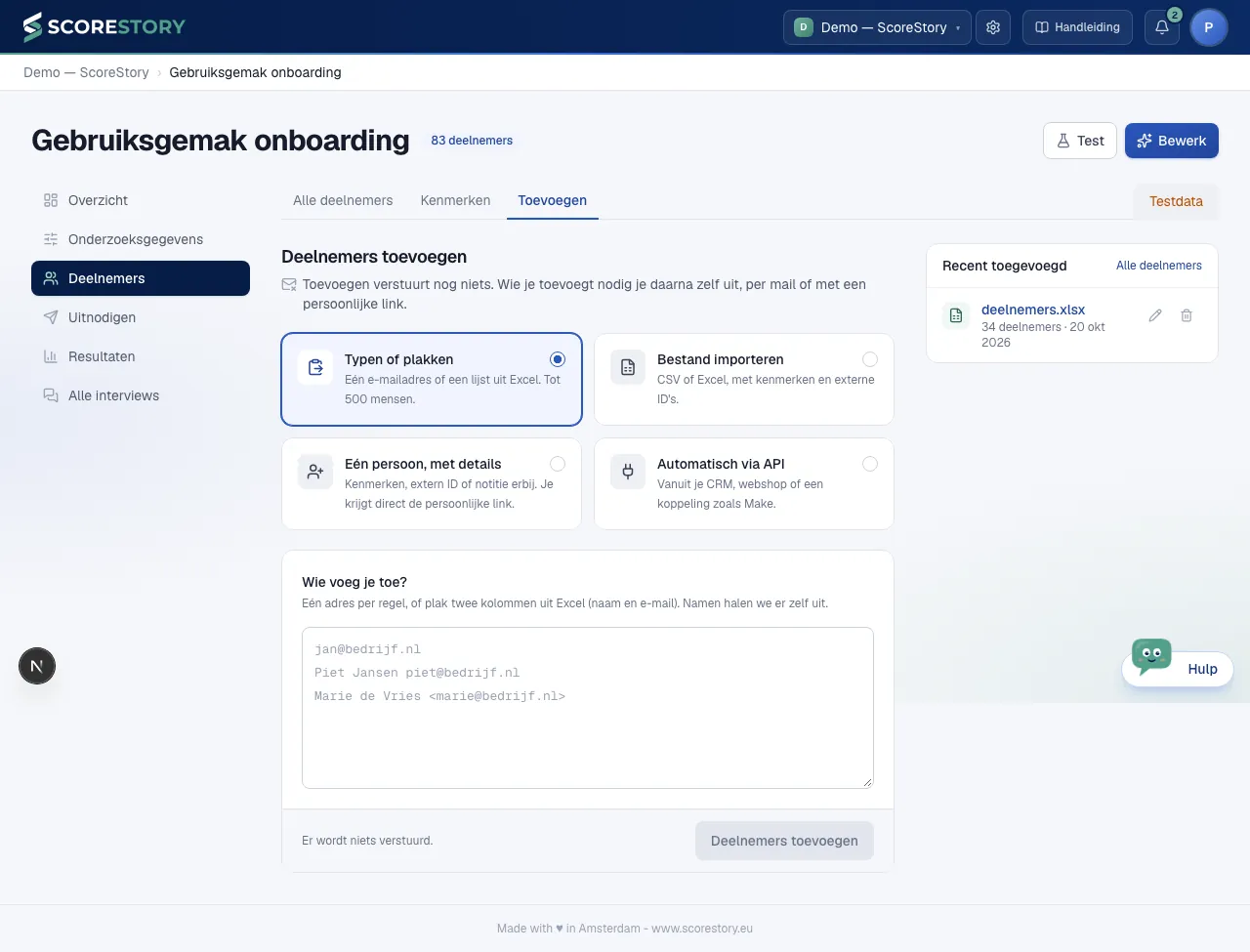
You add people on the Participants → Add tab. While your survey has no participants yet, Participants opens on this tab by itself. Adding sends nothing yet: you invite the people you add afterwards, by email or with a personal link.
At the top you choose how you add people. Below it is only the form for that way:
- Type or paste: one email address, or a list of up to 500 people.
- Import a file: a CSV or Excel file, with properties and external IDs (see CSV import).
- One person, with details: with properties, an external ID or a note. You get their personal link right away.
- Automatically via API: from your own systems (see API).
With Type or paste you type one email address, or paste a list: just email
addresses, two columns from Excel (name and email), or lines like
Jan de Vries <jan@company.com>. Scorestory picks out the names and addresses
itself and first shows what it recognised. Lines without an email address and
duplicate addresses are listed first, so you can remove them or fix them in the box.
If you paste more than 500 people, Scorestory sends you to Import a file.
After adding, the next step is right there. With Mail these people you create one mailing for exactly the people you just added, which you review before sending it. View in All participants shows that group in the list.
With One person, with details you fill in an email address or a name. Your survey's properties are right below. An external ID, a note, an expiry date for the link or an anonymous interview are under More settings. After Add and create link the personal link is ready to copy, and the form is empty again for the next person.
Recently added
Next to the forms (below them on a narrow screen) is Recently added: every import and every pasted list, newest first, ten per page. You see the name, the number of participants and the date. Click the name to see exactly the people from that group under All participants. The pencil renames a group, and the bin removes the whole group: every invitation in it disappears, together with the interviews that belong to them. This cannot be undone.
CSV import
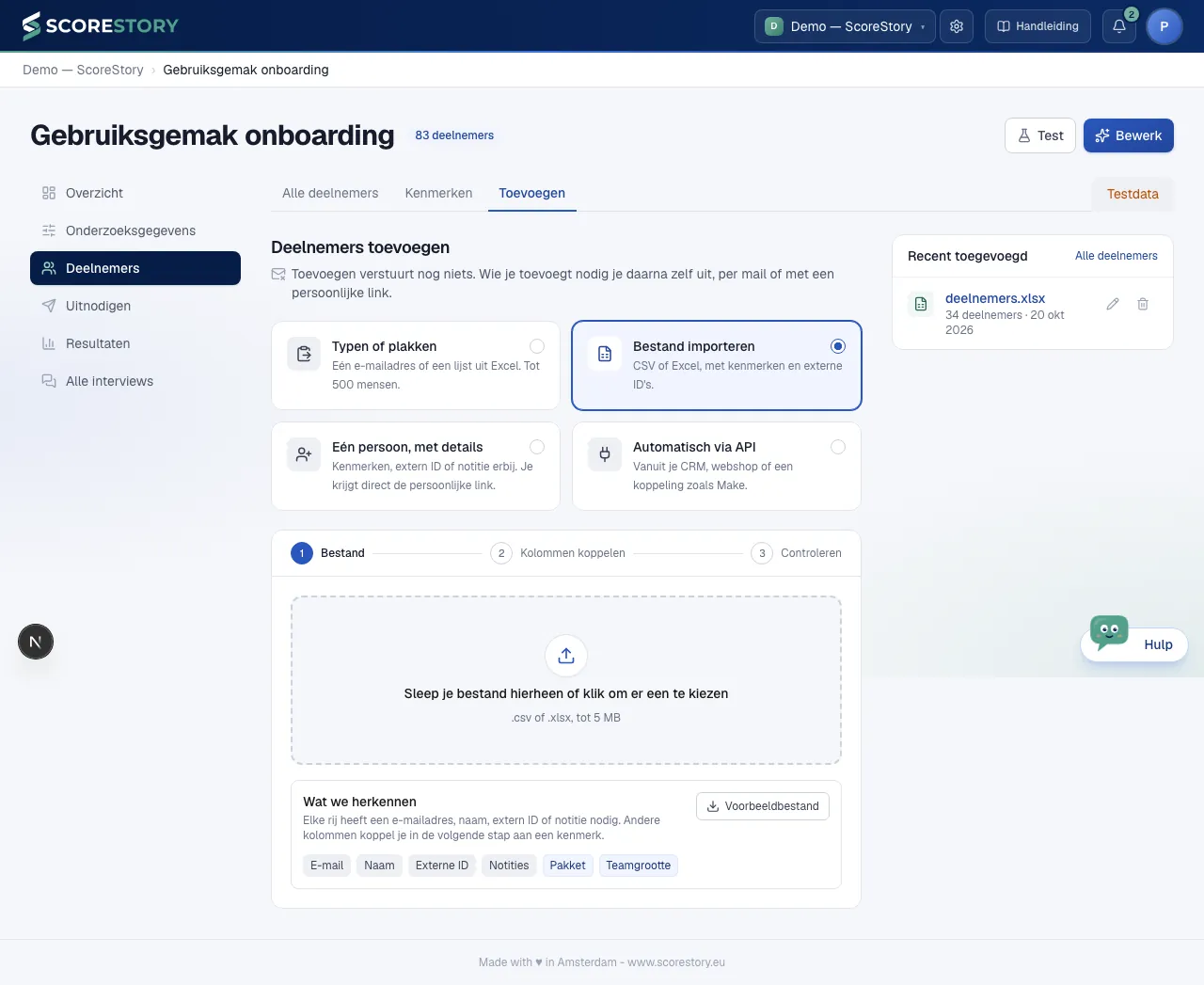
If you have a list of invitees in a file, import it in bulk with Import a file (on the Participants tab → Add). That takes three steps: File, Match columns and Review. The first step shows which fields and properties Scorestory recognises, and lets you download an example file built from your survey's properties, so the columns line up.
Under Match columns you link each column to the right field. If your file has a column for which no attribute exists yet, choose Add new attribute: you get the usual attribute form, prefilled with the column name. For a Select, the values in that column are already set up as options. Once saved, the column is mapped to the new attribute straight away. Leave columns you don't need on Skip: they are not imported. Below the table you see how many columns are mapped and how many are skipped.
ScoreStory links what it recognises for you. A column such as Email address, Name or Customer number starts on the right field, and so does a column full of email addresses, whatever it is called. Columns it cannot place that way are put to AI, and then only the column names: your participants' data is not sent. A column is only linked when the AI is sure. Every column filled in this way is labelled linked automatically. Check those: you can change any link. If AI is switched off for your organisation, only the recognition by column name and contents applies.
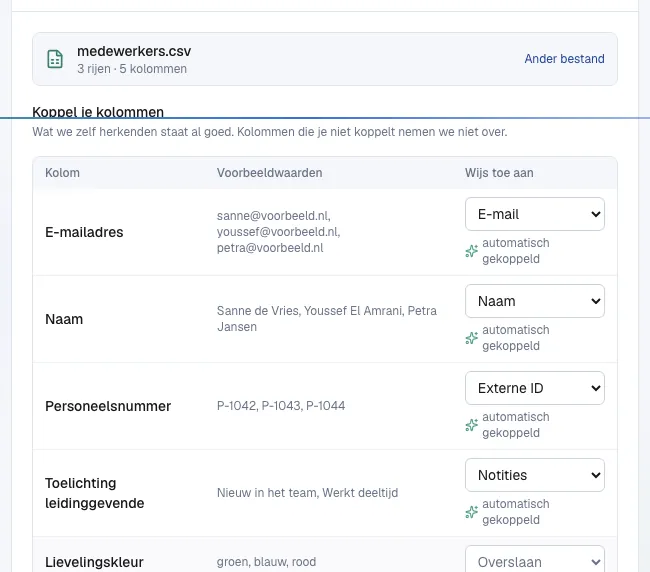
Under Review you see, before anything is imported, how many people are new, how many are already in this survey and how many rows are repeated in your file. Rows that cannot be imported, for example because they have no email address, name, external ID or note, or because an email address is malformed, are all listed here with their row number. Fix your file and choose it again; while such rows remain, you cannot import.
If your file holds people who are already in the survey, you choose what happens to them. Someone is already in the survey when their email address or external ID is already linked to it (or, if you chose an attribute under Duplicate participants, that plus the same value for that attribute; see chapter 6):
- Skip them: the row is skipped; the existing data stays as it is.
- Update their details: the open invitation gets the new data. If the person has already completed the interview, the row is skipped.
- Start a new round: the person gets another invitation. The old one keeps working.
- New round, stop the old one: the same, and the previous invitation that is still open stops working. An interview already linked to it is kept.
The button at the bottom says how many participants your choice imports. After the import you see which rows were skipped and why, for example already invited (same e-mail address) or appears earlier in this file, and you can mail these people straight away.
An import gets a name: the file name by default, which you can change under Review. That name is how the import appears under Recently added and in the Source filter of All participants.
To mail everyone on a day of their own, put a date per person in your file and map that column to Send date. Plan a mail per row then appears: choose a new mailing with a template, or add the mails to a mailing that is already running. Every row gets a mail at 10:00 on its date. If a date has already passed, that mail goes the next morning at 10:00; after the import you see which dates moved and which rows got no mail, for example because the date was empty or could not be read.
API
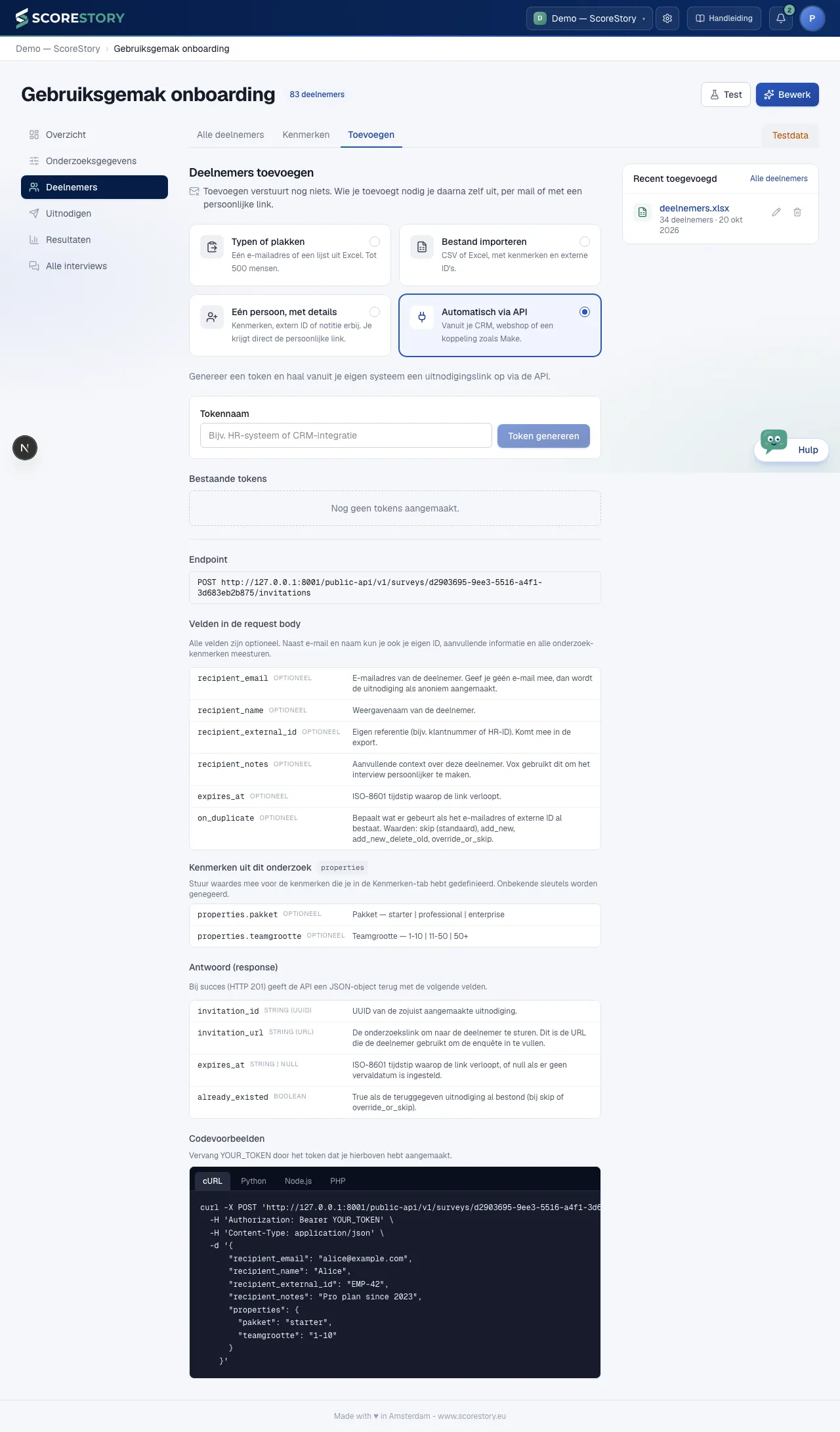
For integrations with your own systems there is a public API: you create invitations from your own software, using an API token instead of a login. On the Participants tab → Add, choose Automatically via API: there you find a token for this one survey, plus example code.
If you need more than inviting — managing surveys, reading participants or results, or letting an AI agent work on its own — create a workspace token under Organisation → API tokens instead. There you choose exactly which permissions each token gets. Full documentation is at app.scorestory.eu/public-api/v1/docs.
← Configuring a survey · Table of contents · Next: The interview →