
The screenshots show ScoreStory in Dutch. The app itself speaks your language: pick it under your account.
On the Participants tab you see everyone linked to the survey: who was invited, who's in progress and who has completed the interview.
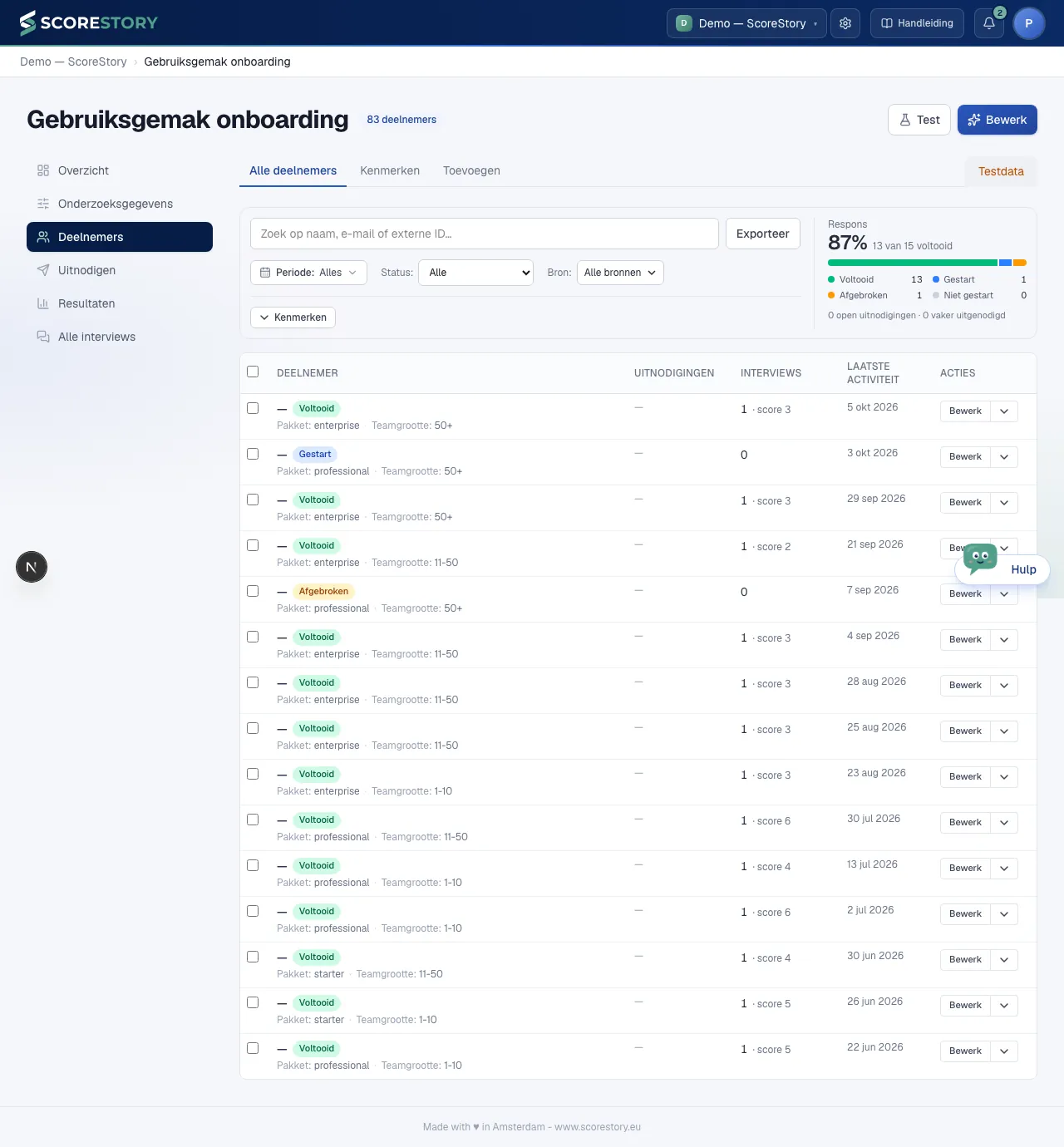
Searching and filtering
You can search and filter the list by:
- Period: the same date picker as on Results, with fixed periods (this month, this year, the last 30 days, …) or a range of days of your own. A participant counts by the invitations sent in that period; for an open link or popup, the moment of the visit counts. Pick This year, for example, and you see who was invited this year and how many of them responded;
- Status: participated or not participated;
- Source: personal, an import, API, open link or popup (see chapter 4). You can tick several at once, and each import is listed under Import by its name. At the bottom is Open invitation: only people who still have an open invitation;
- Attributes — the participant's properties (see Attributes), for example only the Sales team. These filters sit behind the Attributes button below the filter bar; while one is active, the button shows how many.
The response overview to the right of the filter bar and the export follow the search, the period, the source and the attributes. The status filter only changes the list below.
Attributes
Under Participants → Attributes you decide what you want to know about each participant. At the top is Participant attributes: characteristics of participants that you can later use to filter the results, or to decide who receives which notification. Think of Location (a choice of Amsterdam/Rotterdam) or a free text field.
Each attribute has a card of its own. You add a new one with the empty New attribute card at the end: the form opens inside that card, in the spot where the attribute will sit once saved. Edit opens an existing attribute the same way. You can always rename an attribute's or choice option's label afterwards without affecting respondents' already-recorded answers.
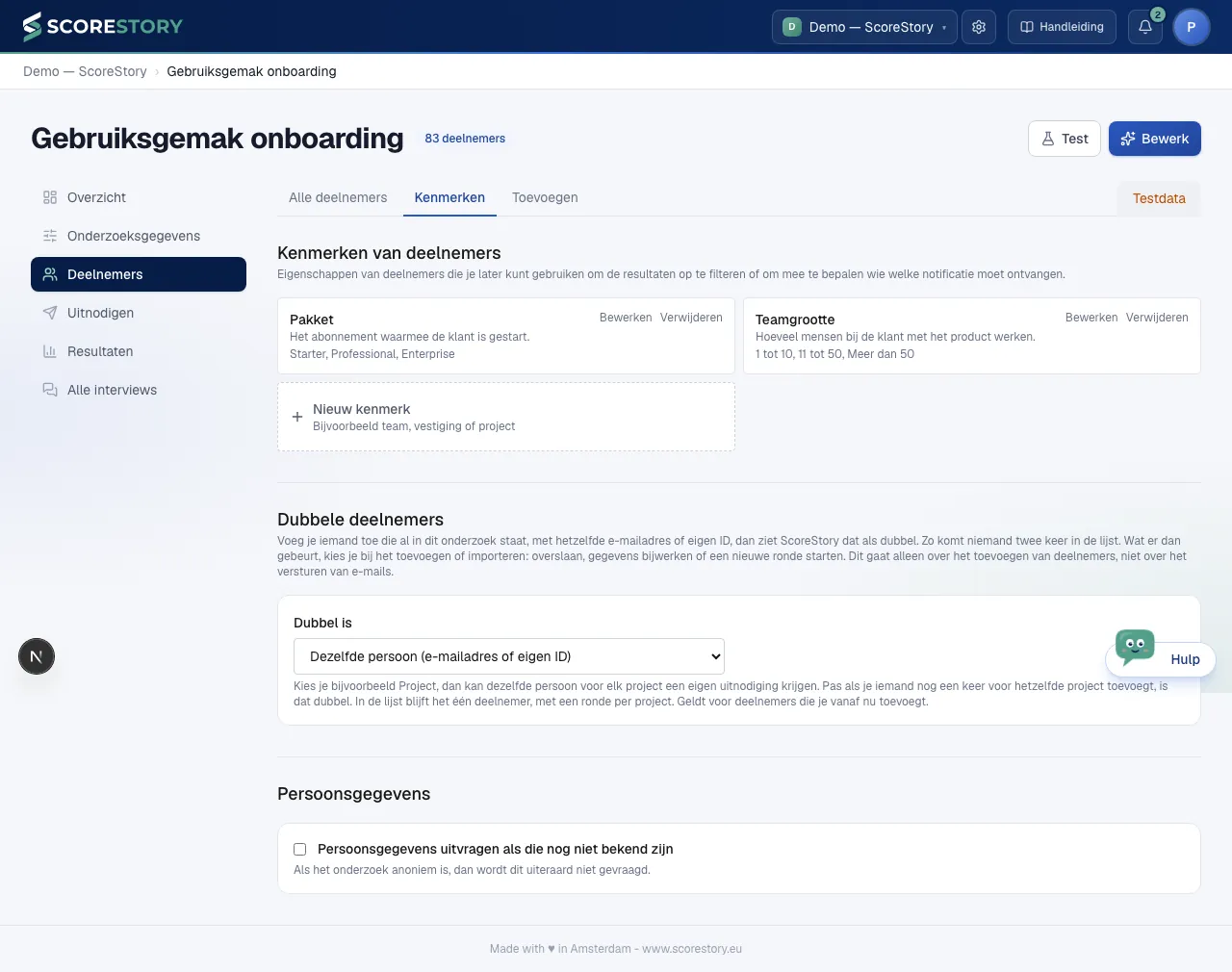
Besides the label you can optionally add a description for when the label alone doesn't give enough context, for example "Which education are you currently pursuing?" with the description "If you are no longer in education, choose the highest education level you completed." The description is shown to the participant when the attribute is asked before the interview starts.
An attribute in an e-mail: the tag
Every attribute has a tag: the name you use for it in an e-mail. When you
create the attribute, ScoreStory makes the tag from its label, so the
attribute Department gets the tag department. Put
{{ properties.department }} in an e-mail and, when it is sent, that spot
shows the recipient's department. You don't have to type it: pick the
attribute under Insert variable in the editor.
The tag is shown in the attribute's card and can be changed under Edit. A
tag starts with a lowercase letter and holds only lowercase letters, digits
and _; within one survey every attribute has a tag of its own. If you later
change the label, the tag stays the same, so e-mails that already use it keep
working. If you change the tag itself, update the e-mails that use the old
one too.
E-mails that still use the old form, such as {{ properties.property_1 }},
keep working.
Duplicate participants
If you add someone who is already in the survey, with the same e-mail address or own ID, ScoreStory treats them as a duplicate. That way nobody appears twice in the list. This applies to every way of adding people: one at a time, an import and the API. What happens to such a person is your choice at the moment you add them, for example under On duplicates in the import: skip, update their details or start a new round. So this setting is about adding participants, not about sending e-mails.
Once the survey has attributes, you choose under A duplicate is what counts as a duplicate:
- The same person (e-mail address or own ID): the default. Anyone already in the survey is a duplicate.
- The same person with the same value for an attribute, for example Project: the same person can then get an invitation of their own for each project. Only adding someone again for the same project counts as a duplicate. In the list they stay one participant, with a round per project.
You choose at most one attribute. Capitals and spaces at the start or end make no difference to the comparison, and an empty value is a value of its own. The choice applies to participants you add from now on; what already exists stays as it is. The chosen attribute carries the label decides duplicates in its card.
Personal data
Below that sits Personal data. Here you decide whether a participant's name and email address are asked for when they are not yet known, for example with a link you share widely. You work through it top to bottom:
- Switch on Ask for personal details that are not yet known. Name and email address are then both asked by default.
- Choose When to ask: in a form before the interview, in Vox's opening message or at the end of the interview. That choice applies to both fields.
- Under Which details, tick what you want to ask and what is required. Required only works with the form before the interview: in the interview Vox cannot force anyone to answer.
For each detail, only what is not yet known is asked. If the invitation already gave you someone's email address but not their name, only the name is asked. If the survey is anonymous, this is of course not asked.
One person, several rounds
Someone you invite more than once to the same survey — every quarter, say — appears once in the list. The row shows:
- Invitations — how many are still open and how many rounds there are in total;
- Interviews — how many interviews the person completed, with their latest score;
- Last activity — the latest invitation, start or completion.
Click the row to see every round on its own: when they were invited, through which channel, whether the invitation is still open, the status of the interview, the score (with the difference to the previous score) and the properties of that round. Properties belong to a round, so a move from one department to another shows up here and counts per round in the results.
Once there are two scores, a small line with the score per round sits at the top. Under each round is the one-line summary of that interview. Open an interview and Other rounds of this person sits above the transcript, with the score per round and the current one marked.
Export asks Per person (the list as you see it, with rounds, open invitations, interviews and latest score) or Per round (one line per invitation or visit, with status, score and summary). Both follow the filters.
Inviting again happens from the row with New invitation. The properties start from the latest round's values; change only what differs. With Close the open invitation ticked the old link stops working; an interview already attached to it is kept. Edit changes the person's name, e-mail and external ID — a still-open invitation follows, earlier rounds keep what was entered then.
Visitors through a public link or popup have no person and appear as their own row.
Several participants at once
Every row has a checkbox in front of it. Tick one and a bar appears above the list with the number of selected participants and the Actions button. The checkbox in the header selects every row on the page; when the filter matches more participants than fit on screen, the bar offers Select all … participants matching the filter. Changing the filter starts the selection afresh.
Actions holds four operations:
- Delete — removes the selected participants with all their invitations and interviews. In an anonymous survey the interviews stay in the results; a participant with an interview that has not been sealed yet (under 72 hours old) is skipped — try again after the next sealing round.
- Send a reminder — the same e-mail as Send e-mail on a single row, but to the open invitation of every selected participant. You pick the template and adjust subject and text; the preview shows the mail for the first selected participant. Anyone without an e-mail address or without an open invitation (any more) is skipped — so whoever already took part gets no reminder.
- New interview — creates a new invitation for every selected participant, with the properties of their latest round. As with a single person, you can close the still-open invitation in the same go.
- Merge — folds the selected participants into one person with all their invitations and interviews, for instance when someone was imported once more under a different e-mail address. You pick who becomes the primary (the oldest by default); a missing name, e-mail or external ID is taken from the others. Visitors through a public link and anonymised participants are left out. Merging cannot be undone.
Afterwards the list shows how many rows were processed and which were skipped, with the reason. A batch action never fails as a whole because one row could not take part.
Reading back an interview
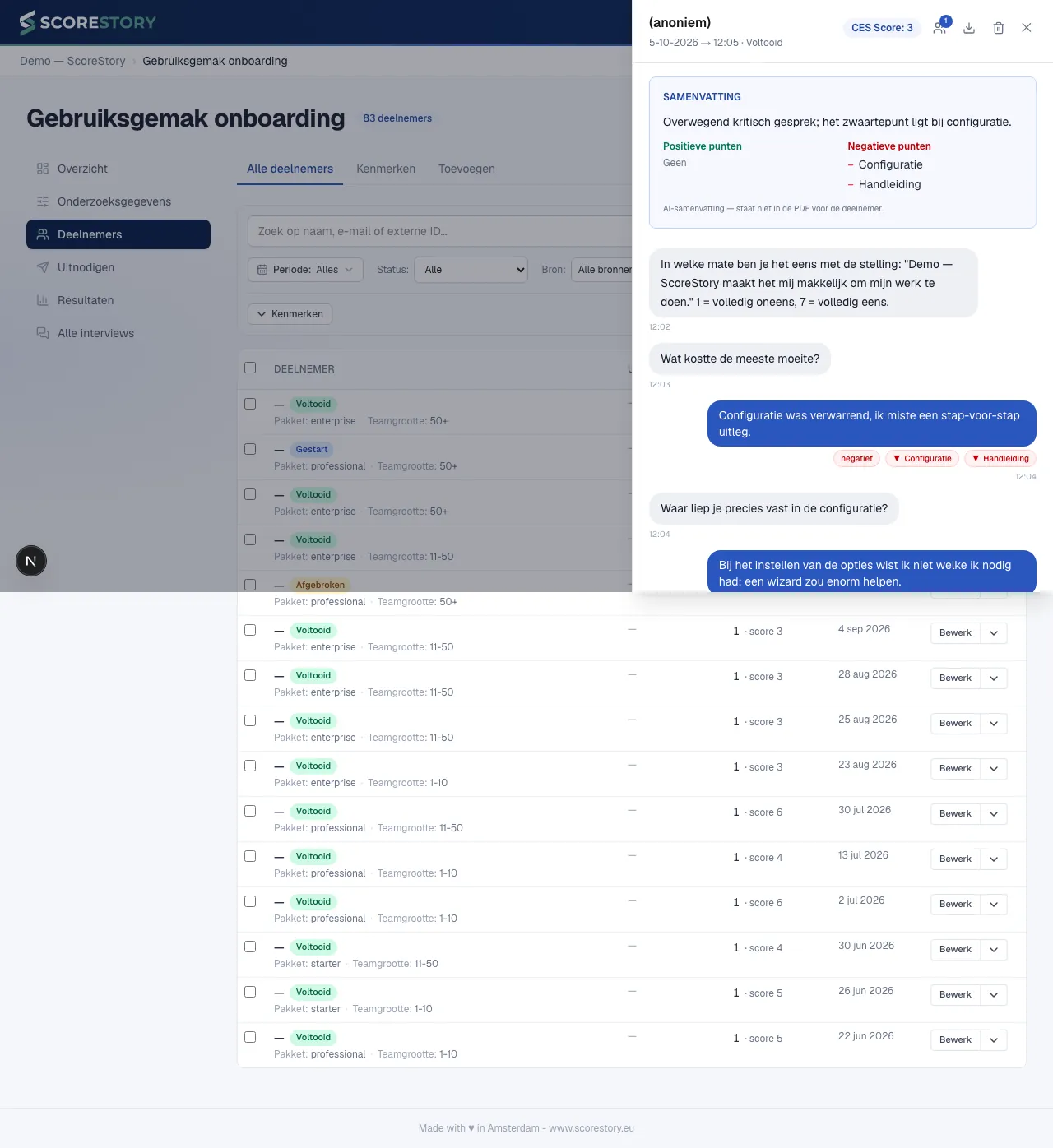
Click a participant to open the full interview. At the top comes the summary: the general tendency of the interview in at most two sentences, followed by the positives and the negatives as a list. That tells you at a glance what the interview was about before you read the transcript. The summary is written automatically once the interview is finished and analysed; it is also in the e-mail a follower of the interview receives, in the All participants export (per round and per person, in three columns: summary, positives and negatives) and at the top of the PDF you get with the interview's download icon. It is deliberately not part of the PDF a participant can download themselves.
Below it you see the score and the entire transcript. For each of the participant's answers we show the AI analysis: a sentiment label (positive/neutral/negative/mixed) and the linked topics with their sentiment. That way you don't just read what was said, but immediately see how it was interpreted.
Followers of an interview
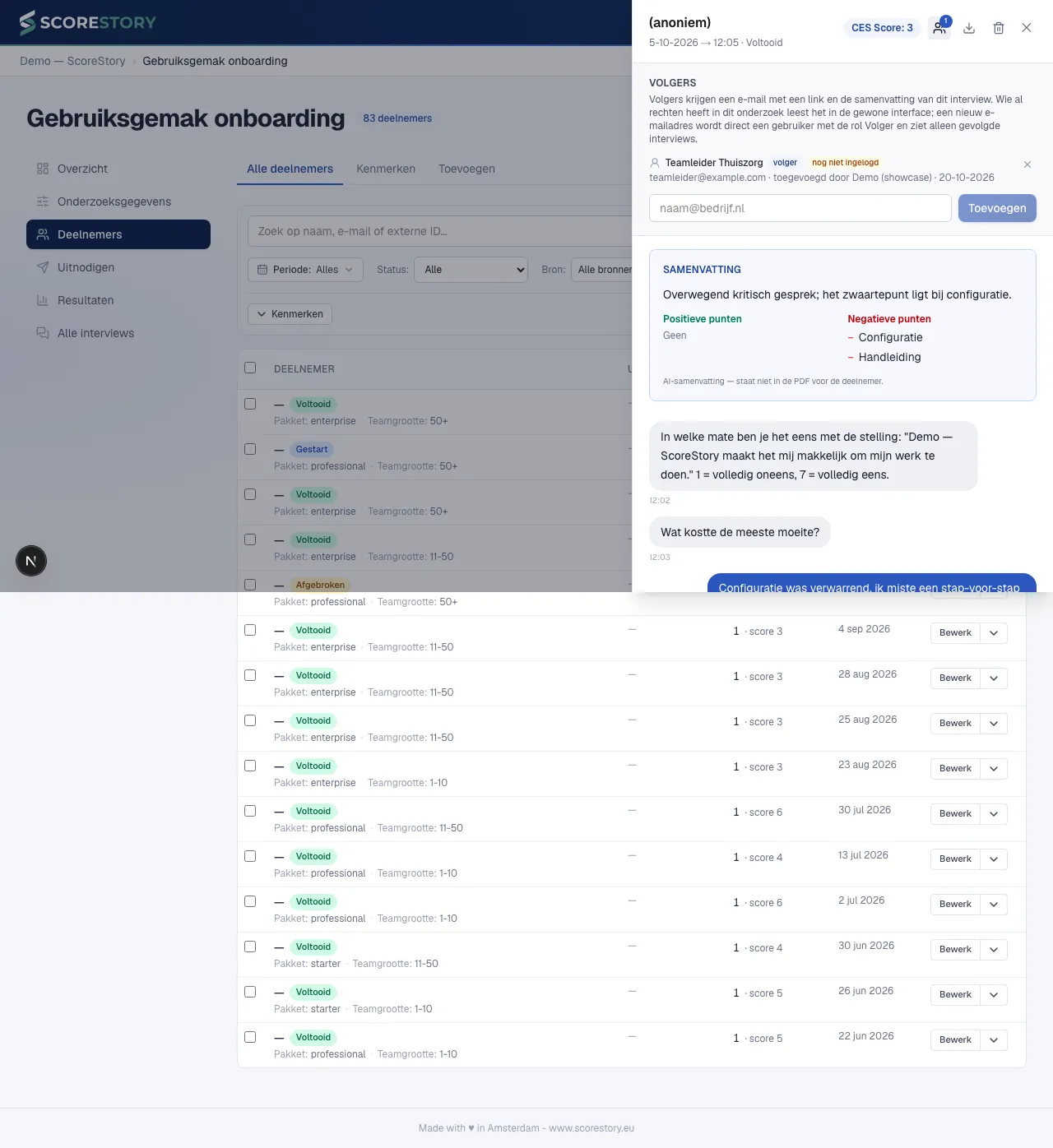
The followers icon (two people) at the top of the interview shows who follows it and lets you add followers: colleagues or others for whom this particular interview matters, for example the manager of the team it is about. Type an e-mail address — users of your organisation are suggested as you type — and click Add. The follower gets one e-mail from ScoreStory with a link to the interview and the summary; the interview itself is not in the mail.
What the follower sees next depends on what they may already do:
- If the follower already has access to this survey (for example as View results), the link simply opens the interview in the familiar interface. The list then says full access.
- If the address is not a user yet, that person becomes a user of your organisation with the role Follower right away (see chapter 8). After signing in with that e-mail address they see the surveys they follow an interview in on the left, the list of only the followed interviews on the right, and nothing else. The list then says follower, with not signed in yet until their first sign-in.
Adding and removing followers takes an admin or editor; colleagues with only View results do see who follows the interview. Remove the last followed interview from someone who holds no other rights and is named in no notification, and that person disappears from your organisation again. Followers added by a notification (see chapter 7) are labelled via notification. An interview can have at most 20 followers.
Deleting a participant from the interview
Next to the followers icon sits a bin icon. It deletes the participant straight from the interview panel, without going back to the list first. Once you confirm, the participant, the entire interview and their invitation are removed in one go, and the panel closes itself.
The icon is only visible to admins; colleagues with view or edit rights don't see it. Deleting is permanent — if you want to keep the survey data but erase the personal details, use Anonymize instead (see below).
Every interview in one list
Participants lists everyone you invited — including people who haven't responded yet. When you only want the interviews that actually happened, use the All interviews tab at the bottom of the left-hand column.
It shows every interview in this survey chronologically, most recently finished interview first: date, participant, source, status, duration, number of messages and the score. Duration is the time between the first question from Vox and the participant's last reply, and only appears once the interview has finished. You can filter by status, by source and — behind the Attributes button — by the participant's attributes (see Attributes), only the interviews from the Sales team, for instance. Searching by name, email or external ID works the same as on Participants.
The status shows whether an interview is still going, and if not, how it finished:
- Started: the interview is still going.
- Not started: the participant only gave a score and said nothing else.
- Left: the participant did answer, but never clicked End interview. The interview closed by itself after an hour of silence.
- Completed: the participant clicked End interview themselves.
- Completed + closing question: the same, and they also answered the closing question afterwards (your own closing question or the thumbs up/down).
The status filter shows, for example, only the interviews that stopped halfway. Interviews from before October 2026 show as Completed, unless they only hold a score or the closing question was answered.
Export, on the right of the filter bar, downloads your current selection as Excel, CSV or JSON: every interview that matches your filters, not just the rows already loaded. You get the same columns as the per-round export on Participants, plus the duration and the number of messages.
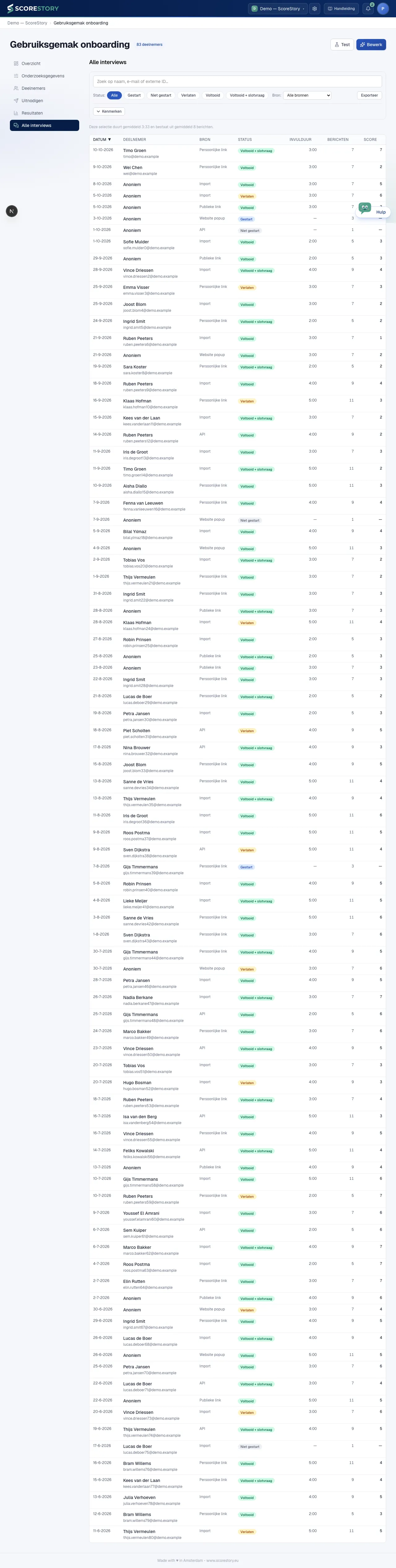
Click a row and the same interview panel opens on the right as on Participants: transcript, sentiment and topic analysis, the score and the button to forward the interview to a colleague — see the two sections above.
In an anonymous survey
If the survey is anonymous, this list works differently. You still see who you invited — you know that yourself — but no longer which interview belongs to whom:
- The status only says whether someone took part, and it is updated once every 72 hours. Someone who finished an interview this morning therefore still reads as "invited" for a while. That is not software being slow: if the status flipped at once, you could match it to the interview that appeared in the results at the same moment.
- You cannot open an interview from this list. The interviews themselves are under All interviews and on the Results tab, without a name.
- Anonymizing and deleting can no longer be done per person — you cannot point at their interview. Participants were given their own deletion code for that (see chapter 5).
Privacy: anonymizing and deleting (GDPR)
For every participant you can:
- Anonymize — the personal data (name, email, free-text answers with
PII) is erased, while the anonymized survey data is kept. This is the
"right to be forgotten" without losing your numbers. Names and contact
details in the interview are replaced with
[removed]; the rest of the interview stays readable and the score keeps counting. - Delete — the participant and all associated data are permanently removed.
In addition, the retention policy (see chapter 3 → Privacy) automatically cleans up data once the configured period has passed.
← The interview · Table of contents · Next: Results & analysis →