
The screenshots show ScoreStory in Dutch. The app itself speaks your language: pick it under your account.
The detail page of a survey has tabs including Survey details, Participants, Invite and Results. This chapter covers Survey details. The tab has five sections: Content, Interview, Closing page, Privacy and Share. Share gives a copy of the setup to another organisation (see chapter 2). Participant attributes are set on the Participants tab, under Attributes (see chapter 6).
Settings is the first step of a new survey. At the bottom, next to Save, the Next step button takes you to the Participants tab. The button does not save anything itself, so save your changes first.
Goal & metric
Under Goal you define what you're measuring and why. You choose the metric and write the survey goal — a short description the AI uses to probe in a targeted way. This is also where you set the interview language.
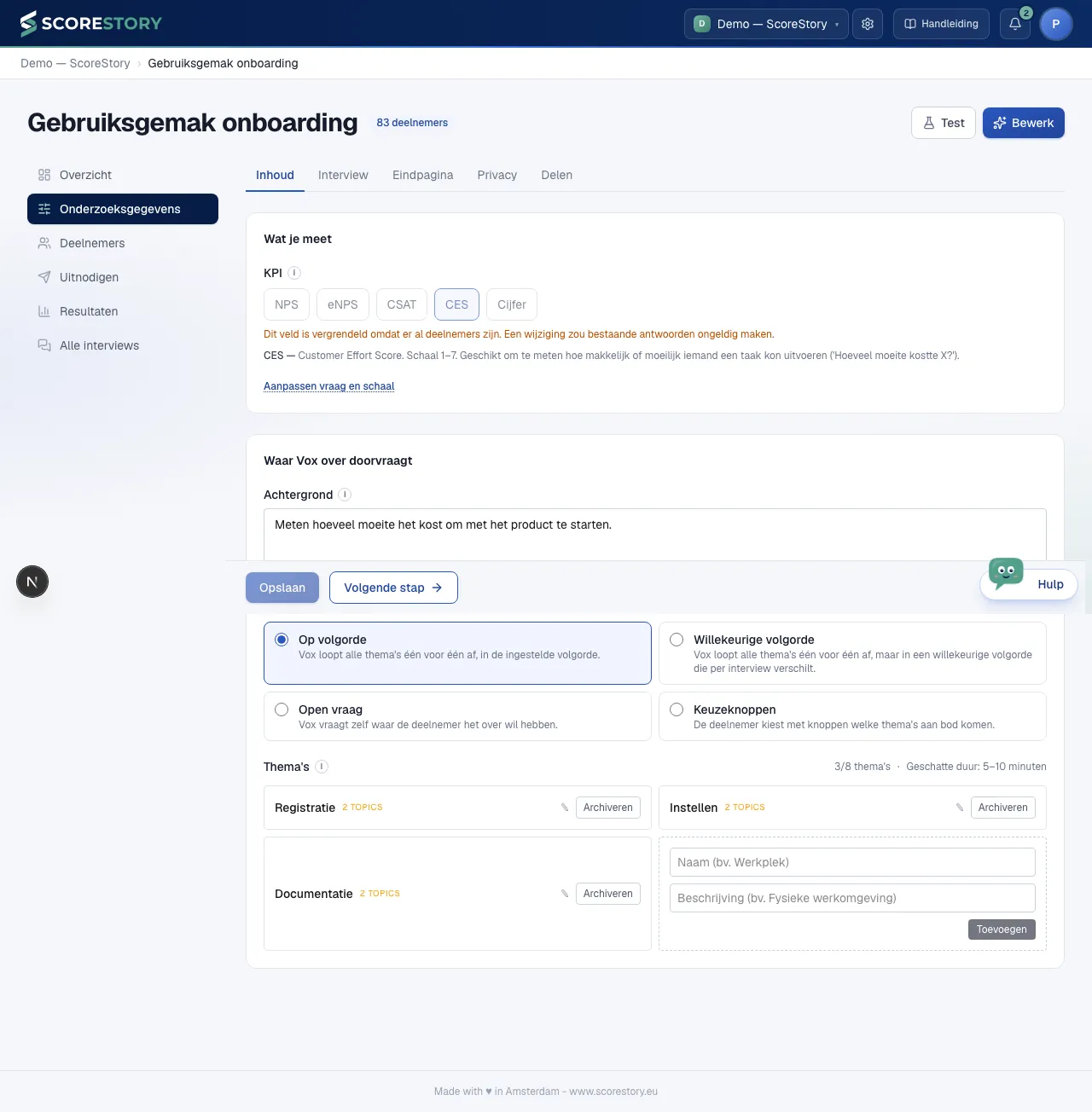
The four metrics:
| Metric | Scale | Measures |
|---|---|---|
| eNPS | 0–10 | How likely employees are to recommend you as an employer |
| NPS | 0–10 | How likely customers are to recommend you |
| CSAT | 1–5 | Satisfaction, for example after a support interaction |
| CES | 1–7 | How much effort something took (Customer Effort Score) |
Note: once real answers have come in, the metric and language are locked — otherwise existing results would no longer be comparable.
Behind the Edit question and scale link, right under the metric setting, you can write the opening question's text yourself (instead of the text auto-generated from the survey goal) and override the labels next to the lowest and highest score (e.g. "Very dissatisfied" / "Very satisfied", or "Low" / "High"). Both fields stay editable at all times, even with live participants. Clearing a field falls back to the default text again. Once opened, the fields stay visible.
Topics (themes)
Topics are the themes that open-ended answers are analyzed against, grouped into categories (for example category Work atmosphere with topics Collaboration and Team spirit). The AI automatically links each answer to the relevant topics and determines its sentiment. In the results you'll find these topics back under "Going well" and "Needs improvement".
You add a new topic in the empty box after the existing topics: fill in the name and, if you like, a description, and click Add. The new topic then appears as a box among the others.
If you choose the Ask themes option where participants pick which themes to discuss via buttons up front, you can check Mandatory, not part of the choice on any theme. That theme no longer appears as a selectable button and is always covered by Vox — after the themes the participant did pick, right before the interview wraps up. Handy for fixed closing questions that don't belong among the content themes, such as a short question about the survey itself.
Tone of voice
Under Tone of voice you choose Vox's speaking style: Warm, Direct, Empathetic or Analytical. The style sets how Vox writes and follows up. This lets the interview match your brand and your audience.
In the same place you find Vox: the interviewer, a small character in your organisation's colour. It sits beside the questions and interacts with the participant. It is on by default. For a formal survey, untick Use Vox as the interviewer.
With Translate answers to every participant answer is translated into another language for the analysis. The original answer is always kept: the translation is stored alongside it and never replaces it.
Closing page
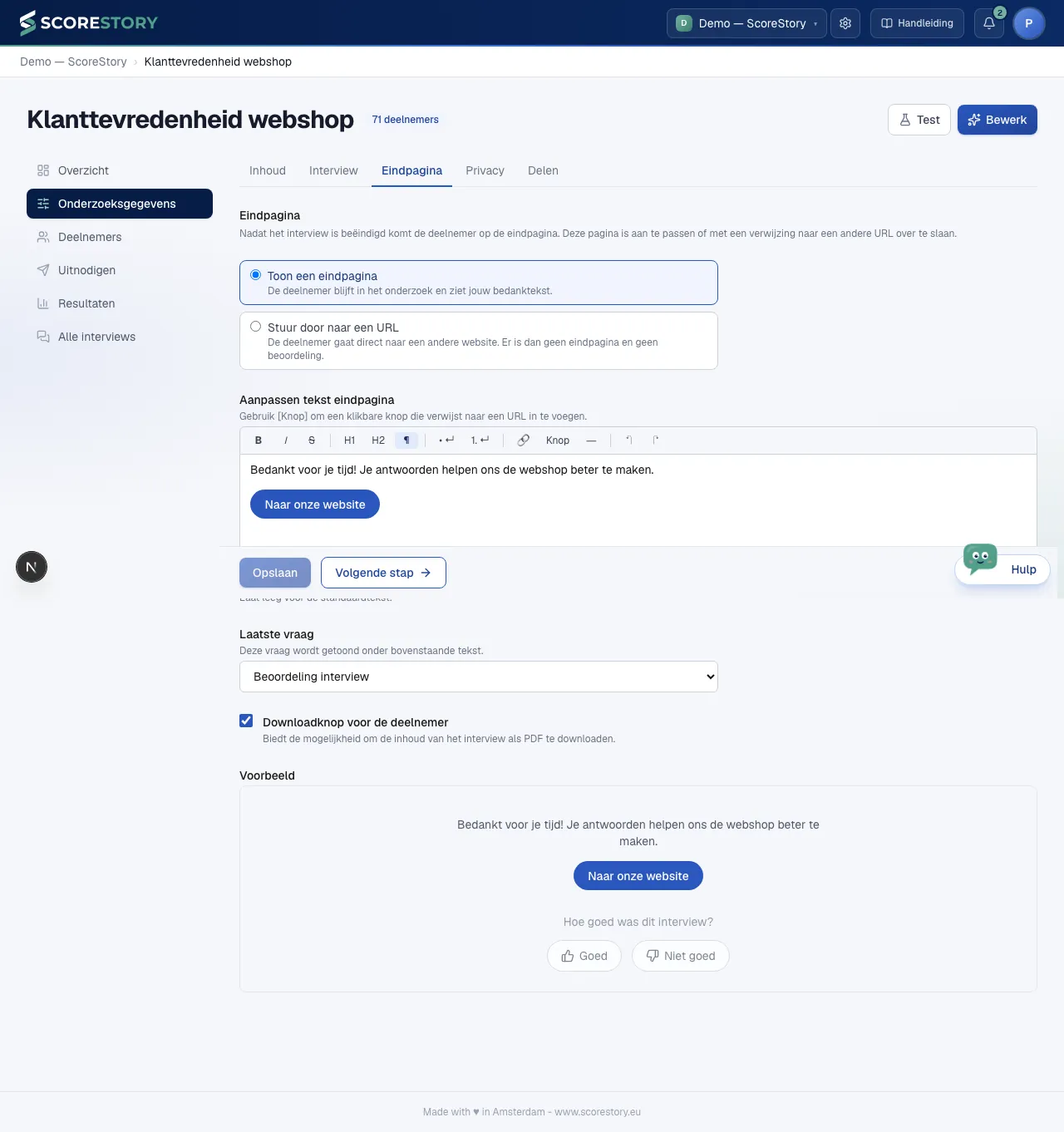
Once the interview has ended, the participant lands on the closing page. Under Closing page you customise that page, or skip it by sending the participant to another URL. There are two options:
- Show a closing page — the participant stays in the survey and sees your own text. You write it under Edit closing page text in an editor with bold, italics, headings, lists and links. Use Button in the toolbar to insert a clickable button that links to a URL, for example Visit our website. Leave the field empty and the default "Thanks for your participation." stays.
- Redirect to a URL — after the interview the participant goes straight
to another website. No closing page, no rating. If the participant has an
external ID, it is added to the URL as
?external_id=…so your website knows who finished the interview. Anonymous surveys never pass it on.
The Final question dropdown controls which question follows your text:
- Nothing — the page ends with your text, for example because your survey closes with a call-to-action of its own.
- Interview rating — the thumbs up / down about the interview itself. This is the default.
- Custom question: you ask one question of your own. First you choose the question type, below it you fill in the question and the answer options. With an open question the participant types their own answer; optionally you validate it as an email address, phone number, URL or number. With a closed question you provide two to ten answer options, shown to the participant as buttons.
Answers to a custom question are stored: you'll find them in the interview detail on the Participants page and as the Antwoord eindvraag column in the export.
The Download button for the respondent checkbox lets the participant download the content of the interview as a PDF from the closing page, with the survey name, the score and the full interview. This checkbox only shows up under Show a closing page: choose Redirect to a URL and there is no closing page to download from. The button is on by default.
Below the text field a preview updates as you type, so you can see how the page will look to the participant.
Anonymous survey
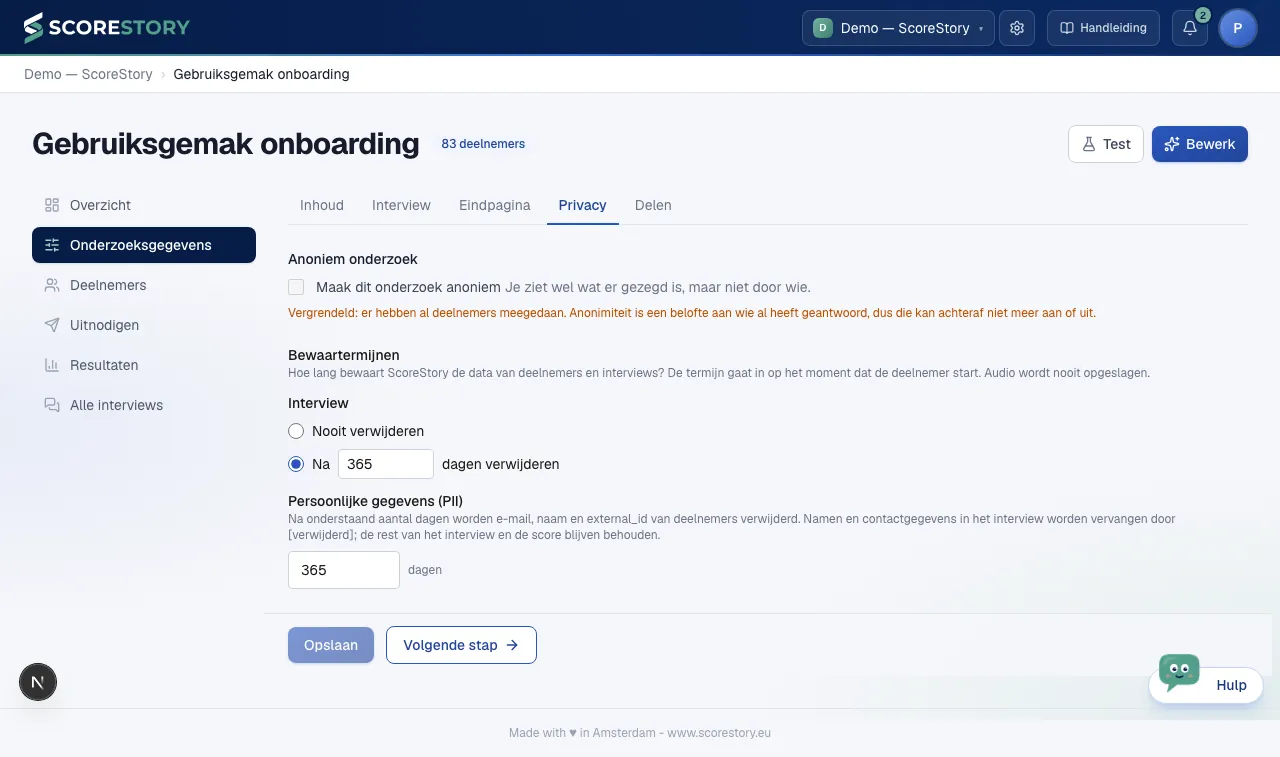
Under Privacy you can make a survey anonymous with the Make this survey anonymous checkbox. The interviews are then separated from the participants: you do see what was said, but not by whom.
This is meant for subjects people are only honest about when they know it cannot be traced back to them — workload, managers, psychological safety.
What changes the moment you switch it on:
- No names or e-mail addresses with the interviews. Not even when a participant mentions themselves during the interview, and you cannot add them by hand afterwards either.
- Participation lags by 72 hours. The Participants tab does show that someone took part, but it is updated once every 72 hours rather than immediately. That is exactly the point: if you saw it at once, you could match an incoming interview to whoever just pressed "finish". Bear in mind that a reminder can therefore reach someone who has just participated.
- Small groups are not shown. Filter on an attribute covering fewer than 5 participants and you will not see those results. A department of two is otherwise still a name.
- Participants get a deletion code. At the end of the interview they receive a code they can use to have their own answers erased later. You cannot do it for them — you cannot find their interview. Note: if you set a redirect URL under Closing page, participants never reach the closing screen and never see that code.
- A custom closing question does stay with the interview. If you set a custom question under Closing page that asks for contact details (an email address, a phone number), that answer is stored with the interview and appears in the export — while the name has deliberately been stripped. The participant types it themselves and can leave it blank, but it does make their interview traceable again. So only ask for it if that is what you intend.

The setting locks as soon as the first participant has taken part. Anonymity is a promise to the people who already answered: switching it on afterwards does not undo the names already collected, and switching it off would attach names to interviews given anonymously. So decide before you start inviting.
Privacy & retention periods
Under Privacy you configure the retention policy: how long ScoreStory keeps the data of participants and interviews. The period starts when the participant starts. Audio is never stored. This gives you control over GDPR obligations.
- Interview: choose Never delete or Delete after [number] days. The second is selected by default, with 365 days. After that period the whole interview is deleted, including the score and the analysis. It no longer counts in the results.
- Personal data (PII): after the number of days you fill in, the name, e-mail and
external_id are erased. In the interview itself, names and contact
details are replaced with
[removed]; the rest of the interview, the score and the themes are kept and keep counting. An AI model looks for those names; it finds nearly all of them, but a missed name can't be ruled out.
Personal data is never kept longer than the interview, and never forever. If you want to keep interviews forever, set a period for the personal data: the interview then stays, anonymised.
← Creating a survey · Table of contents · Next: Inviting participants →