
The screenshots show ScoreStory in Dutch. The app itself speaks your language: pick it under your account.
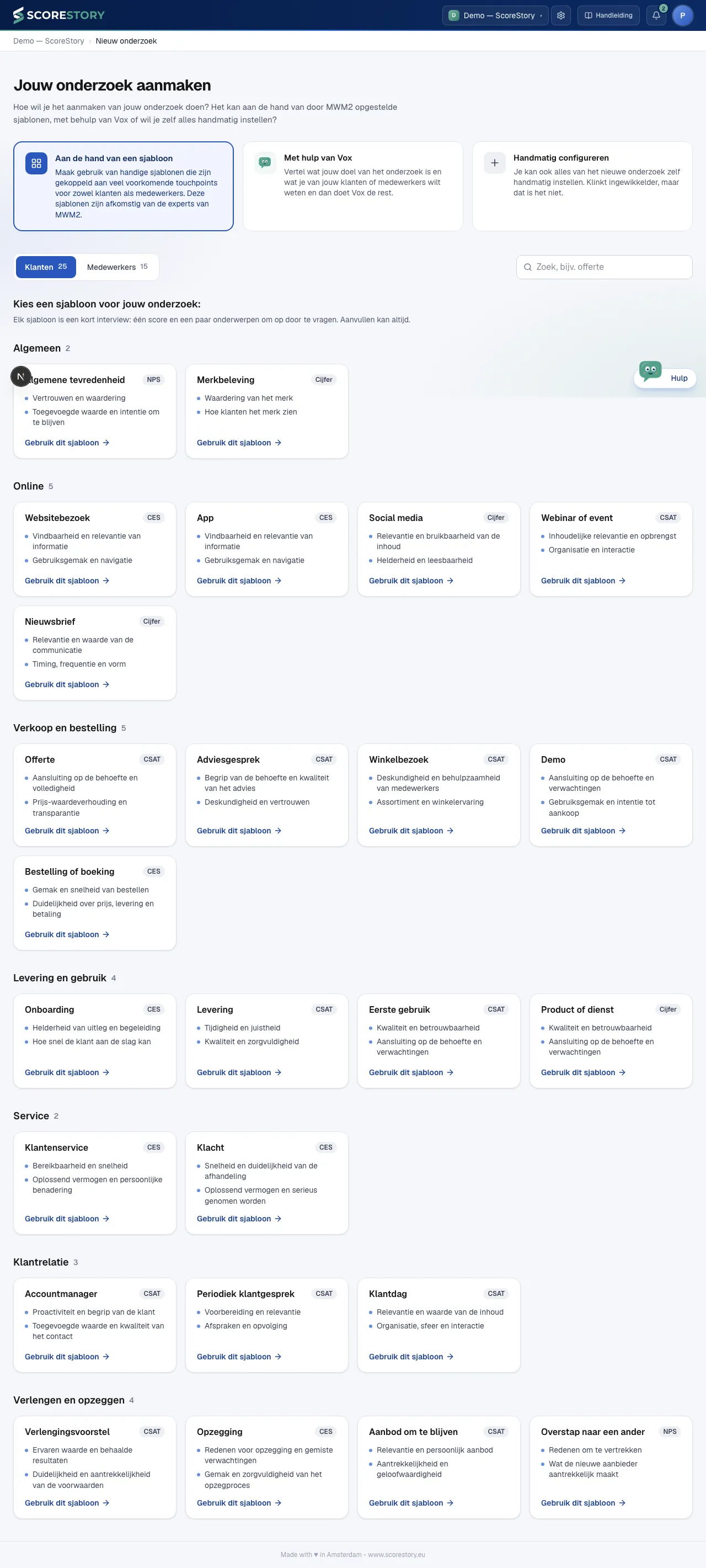
There are three ways to start a survey: from a template, with help from Vox, or manually. They all begin at "New research" on the overview. You land on "Create your research", where you see the three routes side by side. Nothing is chosen yet: click the route you want to take.
With a template
A template is a short, ready-made survey for a common touchpoint: one score and a few topics to dig into. The templates are written by the experts at MWM2. Click "From a template"; only then do the templates appear under "Choose a template for your research:". Use the switch to choose whether the survey is among customers or employees. Templates are grouped per situation, for example Quote under Sales and ordering or First day under Hiring and onboarding. Looking for something specific? The search field filters on name and topic.
Click "Use this template". The template you picked changes colour while the survey is being created, and you land straight on the detail page of a new survey, with the metric, the name, the background and the themes already filled in. You can still change everything afterwards (see chapter 3). A survey from a template counts as an ordinary new survey for your subscription.
With Vox (recommended if you want to measure something else)
Under "New research", choose "With help from Vox". Vox greets you with your organisation's name and asks about your goal and what you want to find out. You land in a chat where you describe in plain language what you want to measure — for example "I want to set up an employee satisfaction survey about satisfaction and collaboration." Vox assembles a complete draft: a fitting metric (eNPS/NPS/CSAT/CES), a survey goal and a set of topics. On the right you see a live preview of the draft as it takes shape.
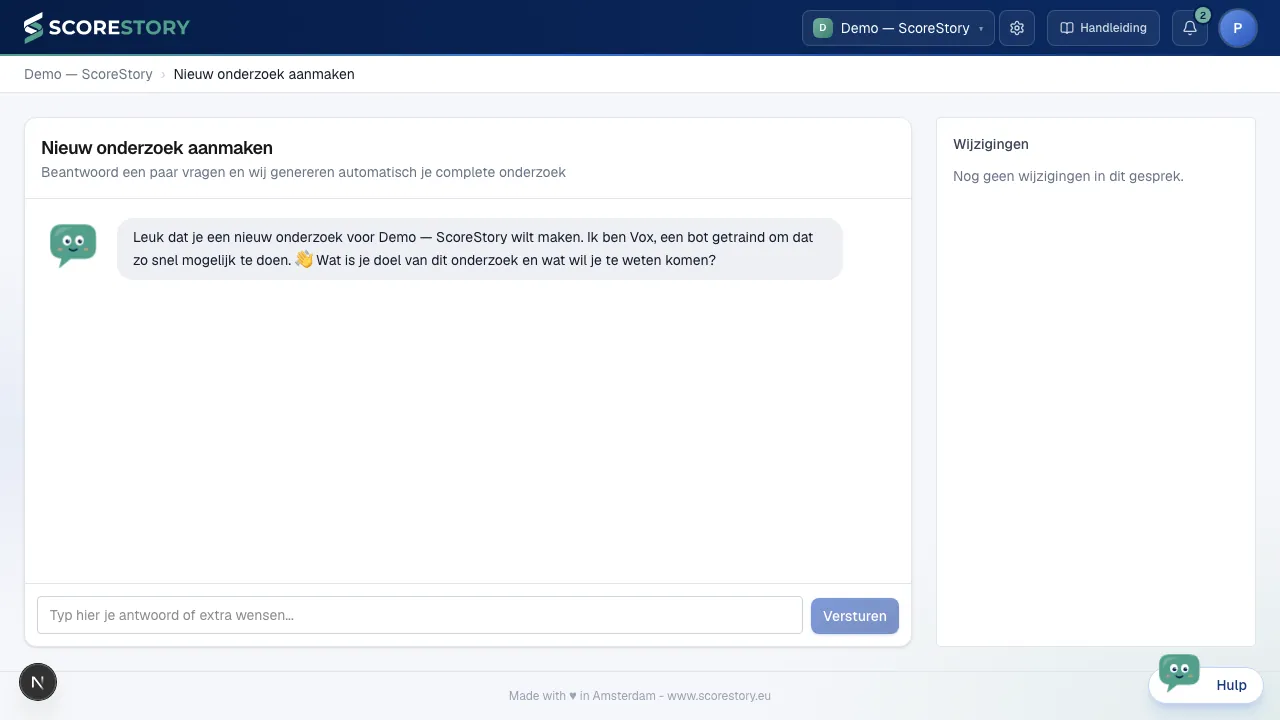
Once you're happy with it, turn the draft into a real survey with one click and land on the detail page, where you can still fine-tune everything (see chapter 3).
Tip: you can later re-edit an existing survey with Vox via the "Edit" button on the detail page. Not happy with the changes you made in that conversation? The "Revert to before this chat" button next to the change log resets the survey to how it was before that conversation in one click — no matter how many edits happened in between.
Manually
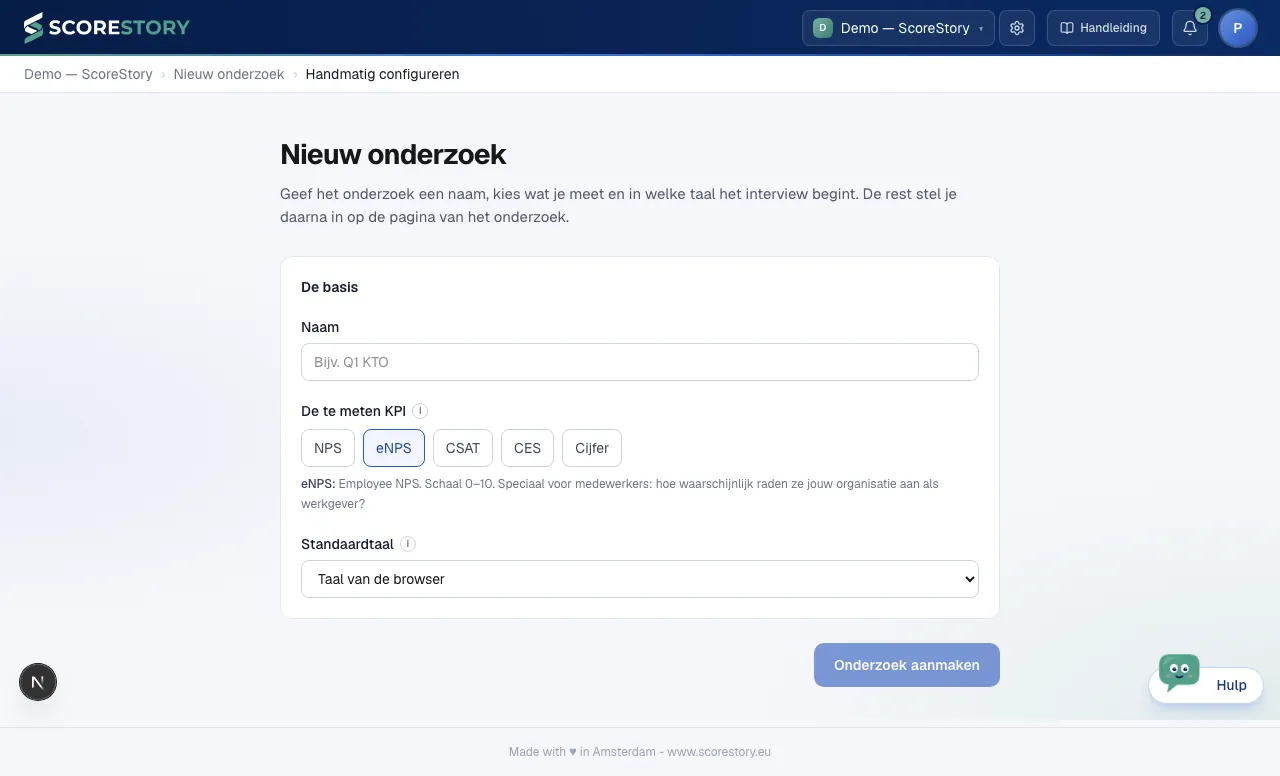
If you'd rather start from scratch, choose "Configure manually". On the "New research" page you fill in three things:
- Name: what the survey is called in your overview.
- The KPI to measure: NPS, eNPS, CSAT, CES or a score. Below the choice you read what the chosen KPI measures and what it suits, just like on a survey's settings page.
- Default language: the language the interview starts in. Leave it on the browser language and every participant talks in their own language.
Then you work out the rest on the detail page. This route skips the chat and is handy when you're reusing a fixed setup.
Duplicating
Running the same survey every quarter, or reusing one setup across several departments? Hover over the survey's card on the overview and click the copy icon in the top right. A new survey "Copy of …" opens straight away, ready to be fine-tuned like any other.
What comes along: the name and survey goal, the metric (including its score range), the interview language and any translation, the speaking style, the interview depth, the topic flow, the settings for asking for a name and email address, the topics, and the participant properties with their options.
What does not: participants, invitations, interviews, results, emails and API tokens. The copy therefore starts empty — and because it holds no answers yet, you are still free to change the metric and its score range. Archived topics stay with the original.
Sharing a survey
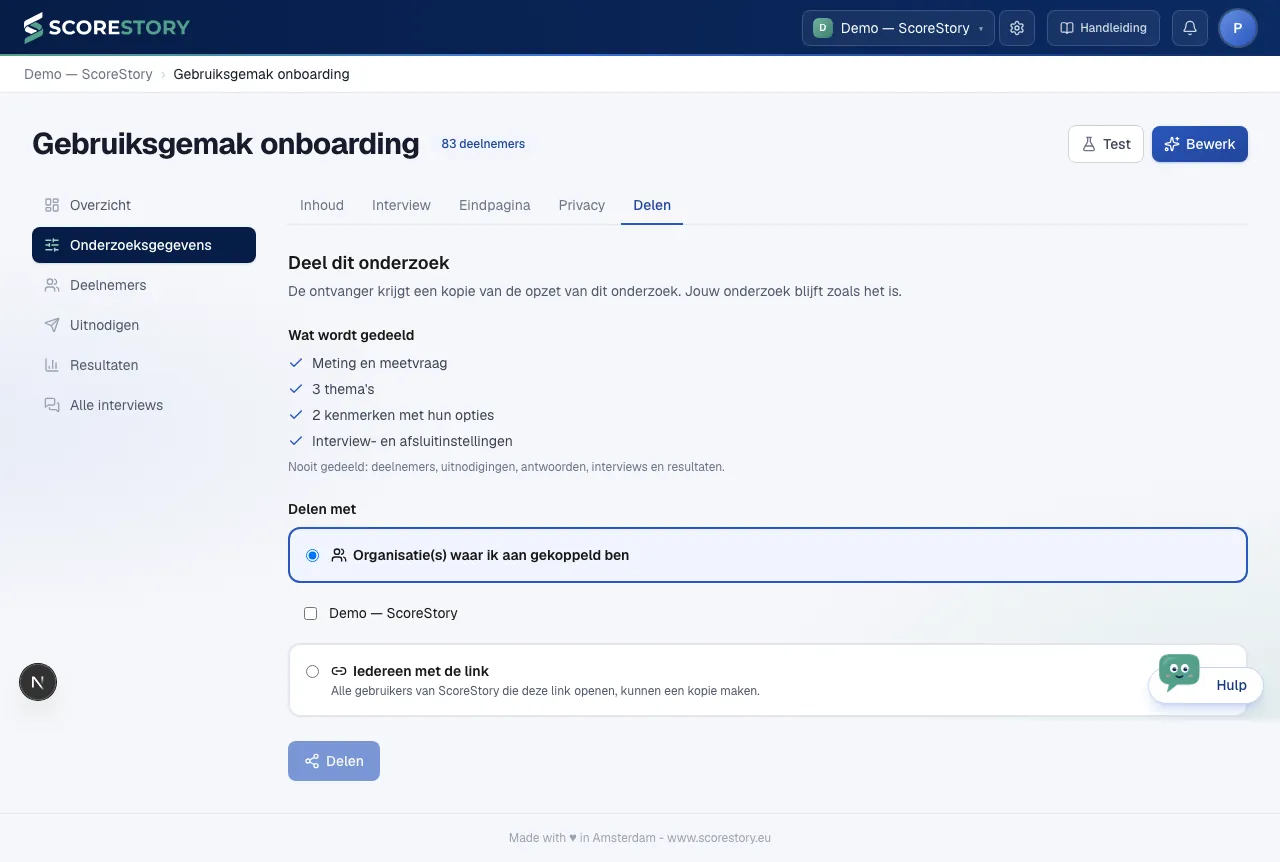
Want to share a survey's setup with a colleague organisation or with a customer? On the detail page, open the Survey details tab and pick the Share section. The recipient gets no access to your survey, only their own copy of the setup. What they do with it changes nothing for your survey.
You choose how to share:
- Organisation(s) I am linked to. Tick the organisations of your own that should get a copy. You must be an administrator there. The copy appears straight away among their surveys. If an organisation's subscription does not allow new surveys right now, you see that per organisation and the others go ahead.
- Anyone with the link. You create a share link and send it on. Whoever opens it first sees what it holds, chooses which of their own organisations gets the copy, and makes it with one click. You see how many copies were made through the link and can switch it off at any time. Copies already made stay.
What is included: the metric and the metric question, the themes, the participant properties with their options, and the interview and closing settings. What is not: participants, invitations, answers, interviews and results.
What is a "survey"?
A survey combines:
- one metric (the score you ask for),
- a survey goal that guides Vox in the interview,
- topics that the open-ended answers are analyzed against,
- and the invitations you use to bring in participants.
You configure those parts in the next chapter.
← Getting started · Table of contents · Next: Configuring a survey →