

ScoreStory looks fresher. But the real gain is how quickly you now get from an idea to a running survey. Start from a template, see at a glance where your survey stands, and add participants in the way that suits you.
A new look
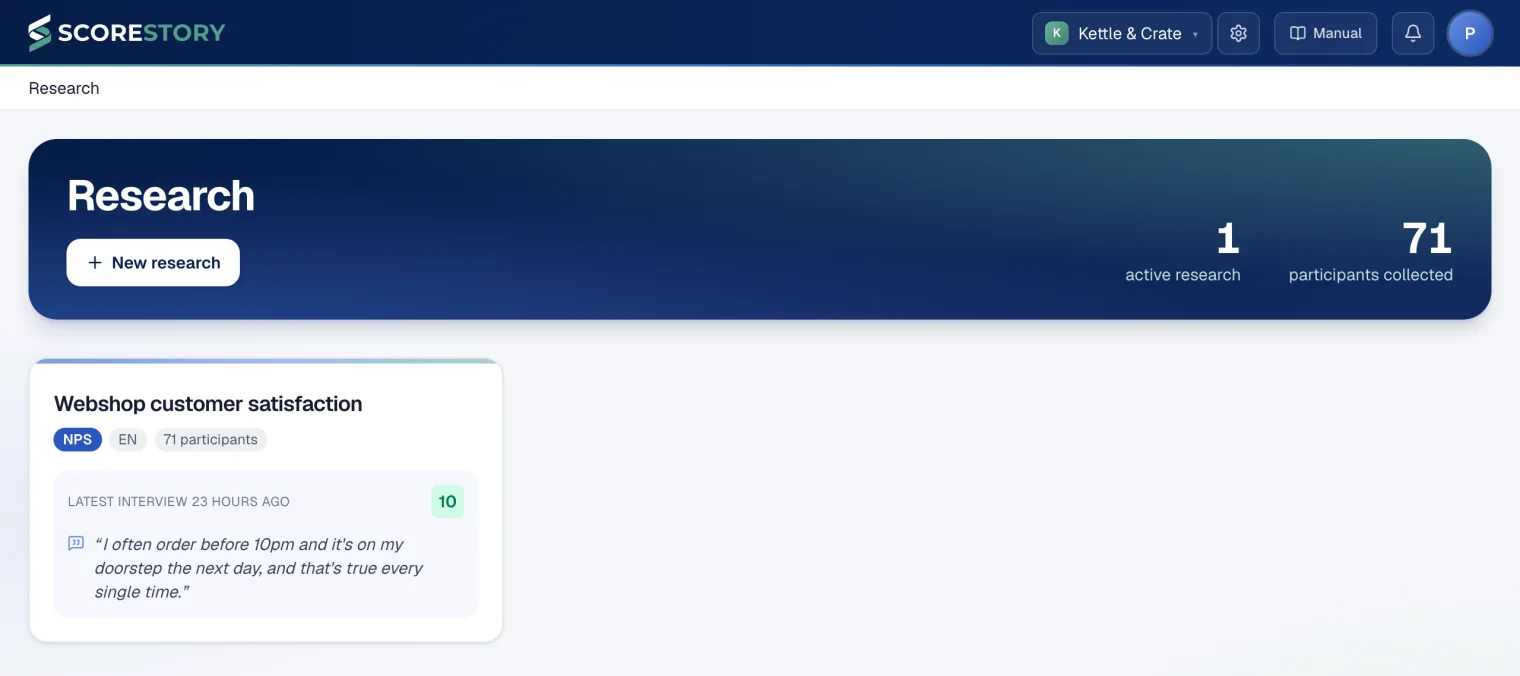
ScoreStory is blue now, with the green of our logo as an accent. A dark bar runs along the top, and the overview of your surveys opens with your totals: how many surveys are running and how many participants you have already spoken to.
Start from a template
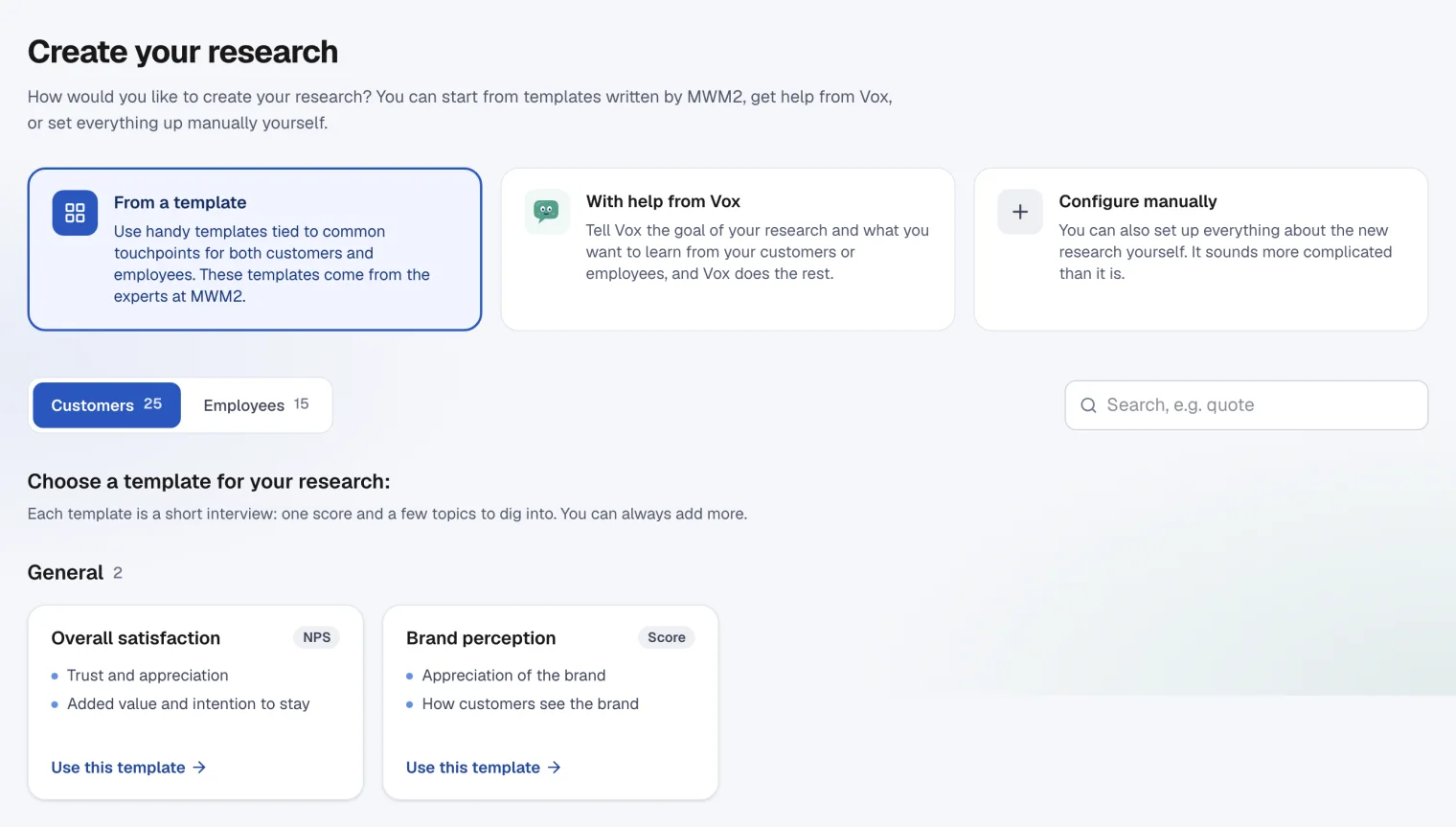
For a new survey you first choose how to begin: from a template, with help from Vox, or entirely yourself. The templates were written with the researchers at MWM2 and are grouped by moment in the customer journey, from a quote, a delivery or a complaint to a first working day or someone leaving.
Every template comes with the metric, the themes and the background already filled in, so the interviewer knows straight away what the survey is about. After that you adjust whatever you like.
An overview for every survey
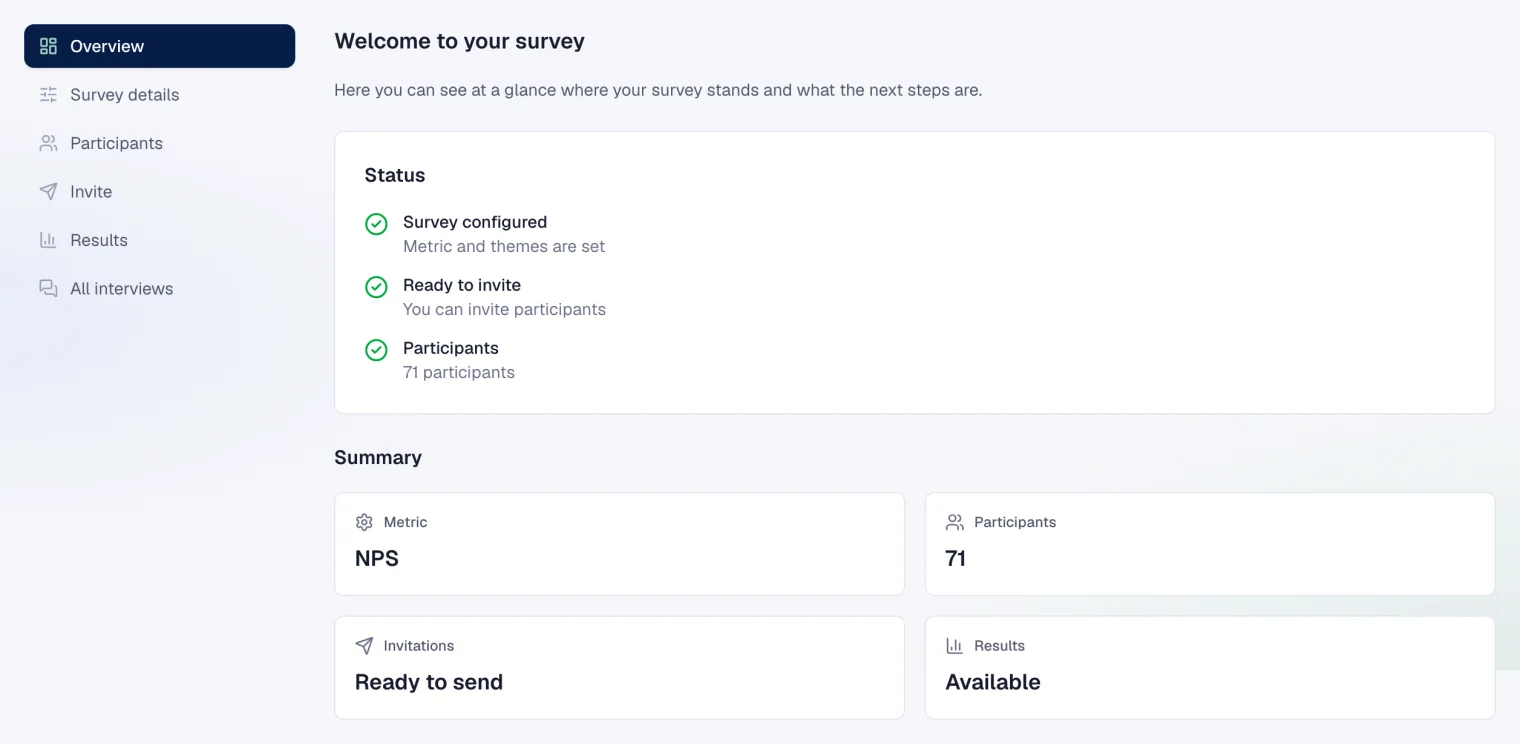
Every survey now opens with an overview. You see at once whether it has been set up, whether it is ready to invite people and whether there are participants yet. Click a step and you go straight to the place where you take care of it.
Do you work for several organisations, as an agency for example? Then you copy a survey that works well into another organisation in one go, or send a link that lets someone else make their own copy. Participants and answers never come along.
Add participants the way that suits you
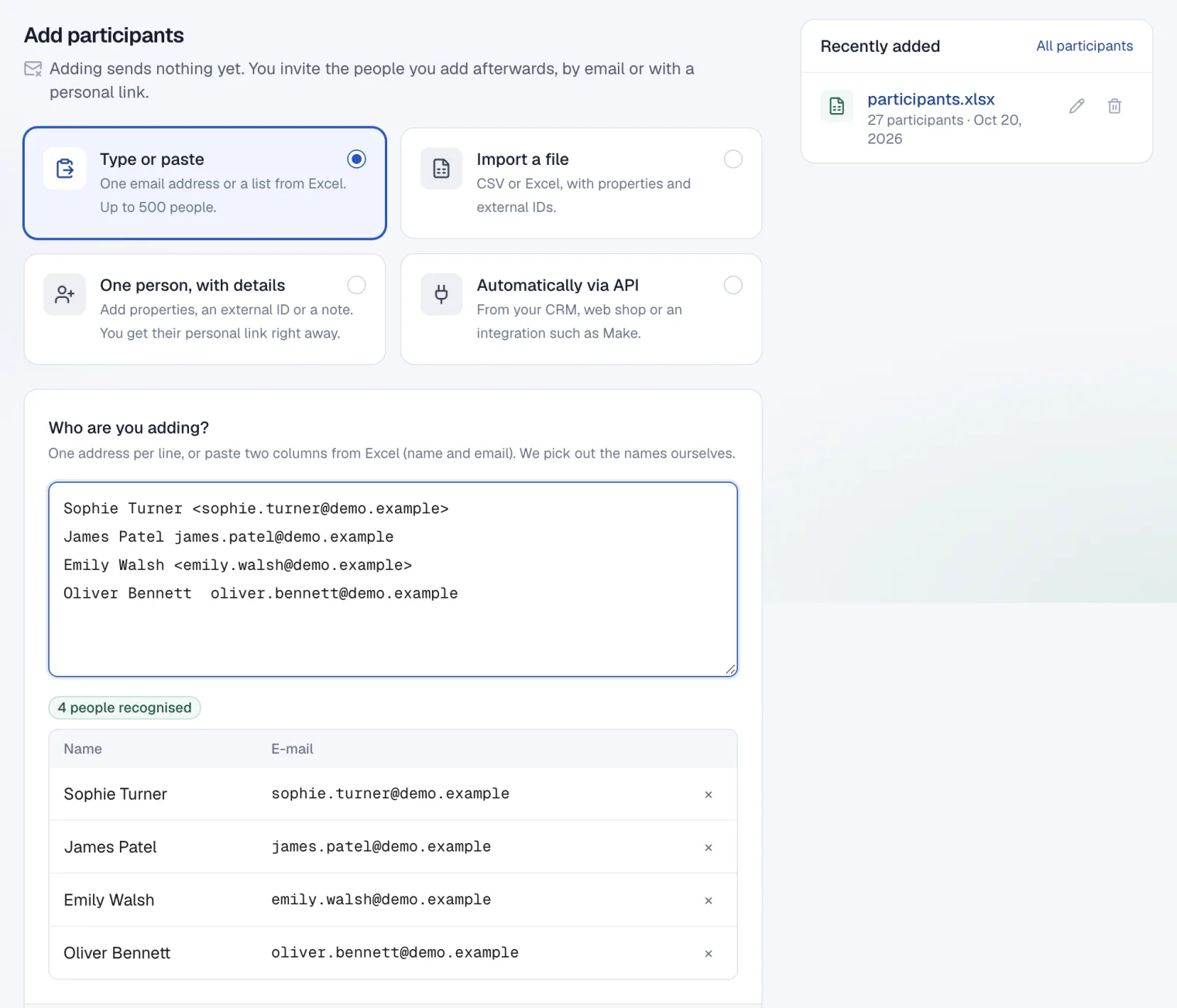
In Participants → Add you first choose how: type or paste, import a file, one person with extra details, or automatically from your own systems through the API.
Feel free to paste a list from Excel, up to 500 people at a time. ScoreStory picks out the names and addresses itself. With a file, the columns are matched automatically. Whatever can't be placed on its own, ScoreStory puts to AI, but only the column names, never your participants' data. Before anything happens, you see how many people are new and which rows can't be added.
Clearer emailing
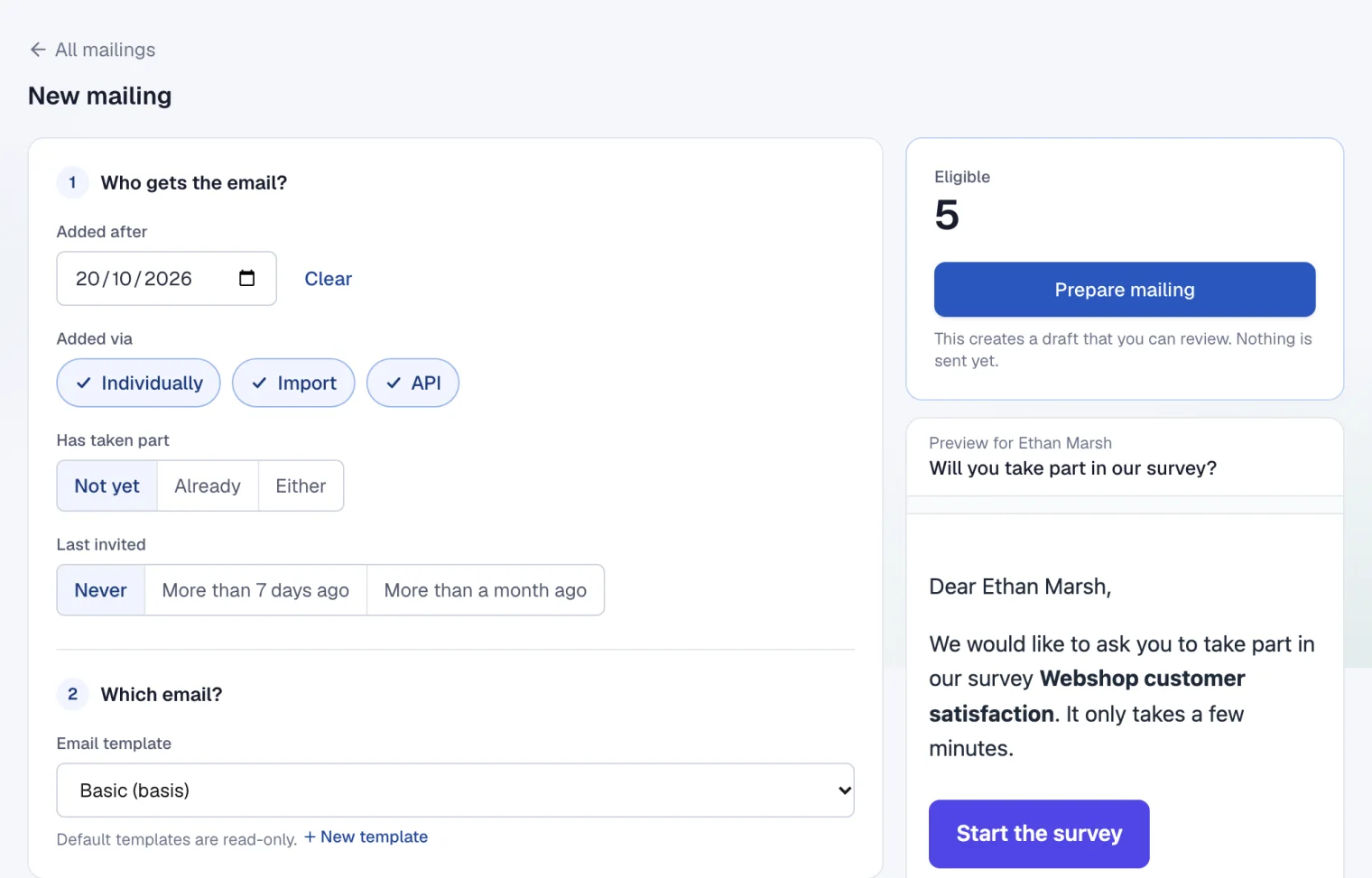
The E-mail tab opens with your mailings, each showing how far sending has got. You put together a new mailing in two steps: who gets the email and which email it will be. Right next to it you see how many people qualify and what the email looks like.
You can now also schedule emails per person, on a date from your file, with a reminder a few days later for anyone who hasn't taken part yet. And whoever unsubscribes decides how far that goes: only for this survey, or for every survey from your organisation.
Follow along, with a heads-up
The people you show your results to can now get an email, if they like, for every new interview that falls within their filters. And a participant who stops halfway can carry on later through the same link: within 24 hours the interview opens again, with a welcome back.